
Description:
This document describes how to set up a redundant Internet connection by configuring a backup based on a mobile connection.
As of LCOS 8.84 it is possible to configure a budget monitoring for the data traffic for a WAN connection via mobile communication. If the specified volume budget is exceeded, the mobile connection is disconnected and a backup WAN connection (e.g. DSL) is activated. The configuration is described in this Knowledge Base article.
Requirements:
- LCOS as of version 9 (download latest version)
- LANtools as of version 9 (download latest version)
- LANCOM mobile communication router
- Configured polling for the main Internet connection
Scenario:
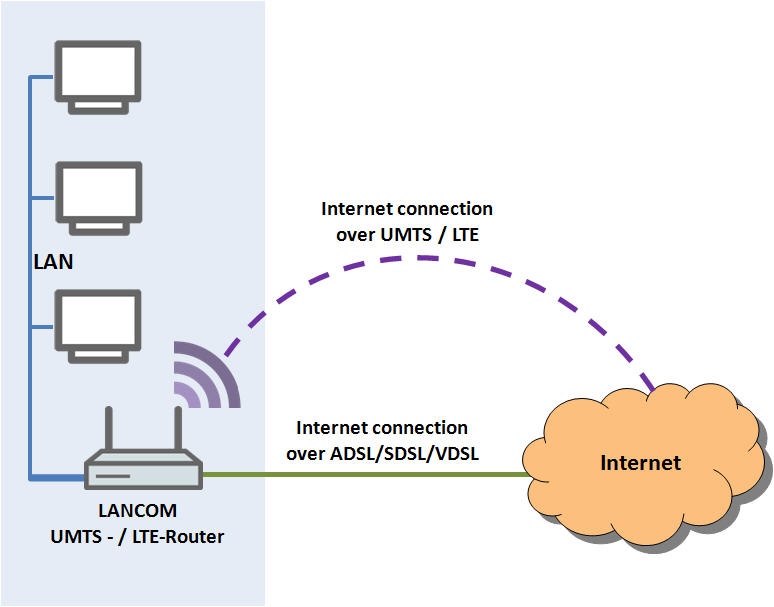
A mobile communication router from LANCOM is employed as the Internet gateway for a company network. The device is set up with a functioning Internet connection via ADSL, SDSL or VDSL.
To ensure that the Internet remains available in case the DSL Internet connection should fail, the LANCOM router is set up with a second Internet connection via mobile communication. This is configured to connect automatically if the DSL connection fails.
The mobile connection remains inactive as long as the DSL connection is working, so saving any connection charges and preventing any maximum data transfer volumes from being exceeded.
Procedure:
1) Configuring the mobile connection:
This example configuration is based on a LANCOM router with built-in mobile communication modem (e.g. LANCOM 1781A-4G).
1.1) Launch the Setup Wizard in LANconfig and select the option Set up Internet access.

1.2) We create a new IPv4 connection.

1.3) In the following dialog, select the option Mobile interface (internal modem).

1.4) Set the Country where the mobile communication modem is to be operated.

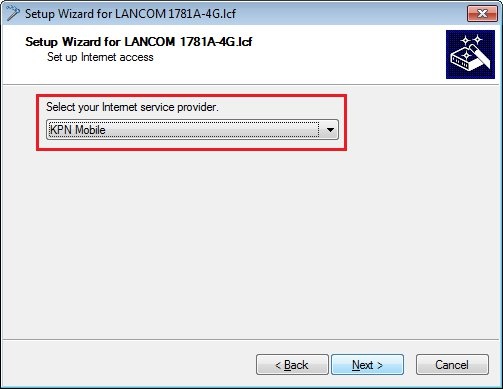
1.5) Select your Internet service provider from the list that follows.
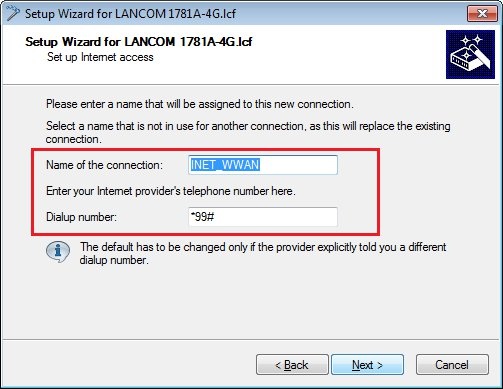
1.6) Enter a name for the Internet connection and the dial-up number given to you by your provider.
Please only change the default value for the dial-up number if you have received a different value from your provider.
1.7) Enter your PIN for the mobile connection. Should your provider have communicated a different APN, modify the default value to suit.
Depending on the provider's APN, your mobile connection may be assigned a public IP address or a private IP address. Information on this is available from your provider.

1.8) In the following dialog, accept the default value for the short-hold time.
- A short-hold time setting of 9999 causes the mobile connection to remain connected permanently, and a disconnect will be automatically reconnected.
- A short-hold time setting of 0 causes the mobile connection to remain connected permanently, but a disconnect is not automatically reconnected.
- If you want your mobile connection to be disconnected when inactive, enter an appropriate value for the short-hold time (e.g. 300 seconds).

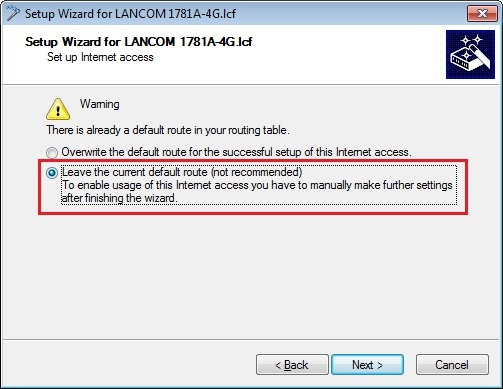
1.9) In the next dialog, select the option Leave the current default route, as the already configured DSL Internet connection is to remain the primary Internet connection.
The mobile connection set up must never be set up in the routing table as a further default route as long as it is used as a backup connection!
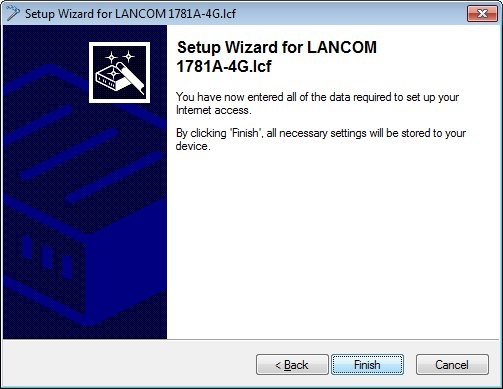
1.10) Click on Finish to write the configuration back to the LANCOM router.
2) Setting up the back-up function:
2.1) Open you the LANCOM router's configuration and go to the menu Configuration → Communication → Call management → Backup table.
2.2) Click on the Add button to create a new entry.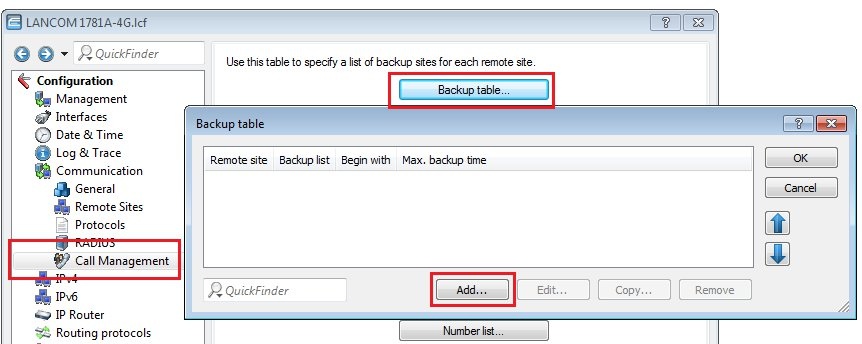
2.3) Set the Remote site as the configured DSL Internet connection.
2.4) In the field Backup list, enter the mobile connection (in this example: INET_WWAN). Now close the dialog windows with the OK button.

2.5) By default a backup connection will be established 20 seconds after failure of the main Internet connection. You can change the value, but we recommend that you do not enter a value of less than 10 seconds.

2.6) Write the configuration back to the LANCOM router. This concludes the configuration.
