
Description:
In its default setting, a LANCOM access point operated with LCOS LX automatically obtains its local IPv4 parameters (IP address, default gateway, DNS server) from a DHCP server present in the local network.
This document describes how you can perform a static IPv4 network configuration in LCOS LX.
Requirements:
- LCOS LX as of version 4.0 (download)
- LANtools version 10.30 or later (download)
- Access Point with LCOS LX
1) Procedure with LANconfig:
1.1) In LANconfig, open the configuration dialog for the LCOS LX operated Access Point and switch to the menu item IP configuration → Configuration → LAN interfaces.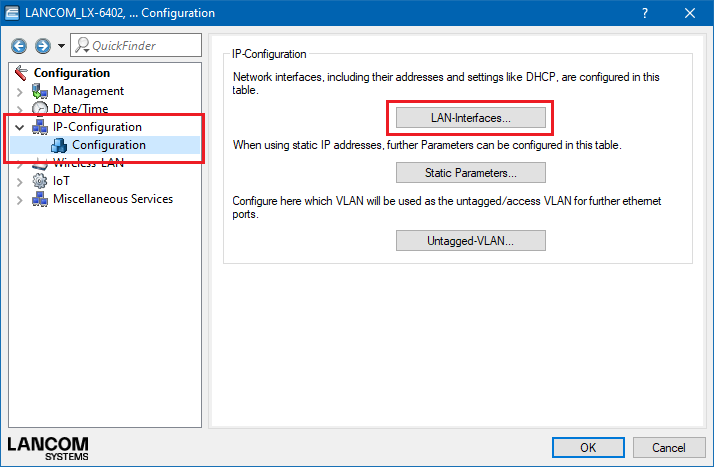
1.2) In this example, we create a static IPv4 configuration for the default LAN interface INTRANET.
- Set the IPv4 address source to the value static.
- Use the field Static IPv4 address to assign an IP address in the CIDR notation (e.g., 192.168.66.124/24 for a class-C network).
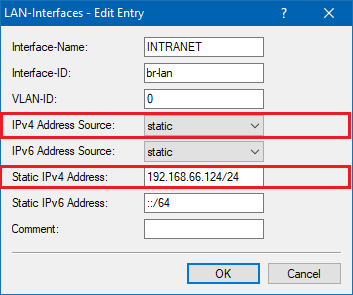
1.3) Open the menu IP configuration → Configuration → Static parameters.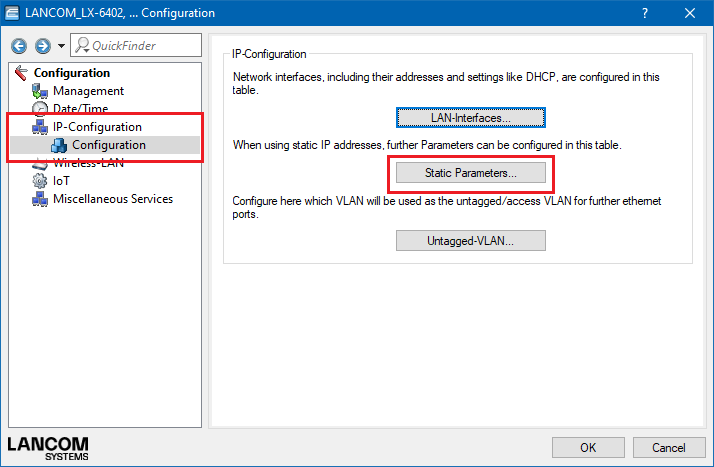
1.4) For the default interface INTRANET, assign the other IP parameters such as the default gateway and a primary and/or secondary DNS server.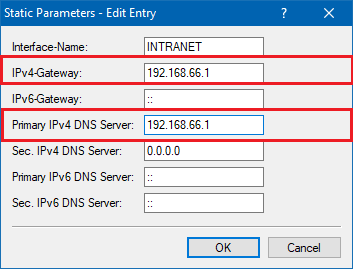
1.5) Write the configuration back to the access point.
2) Procedure with WEBconfig:
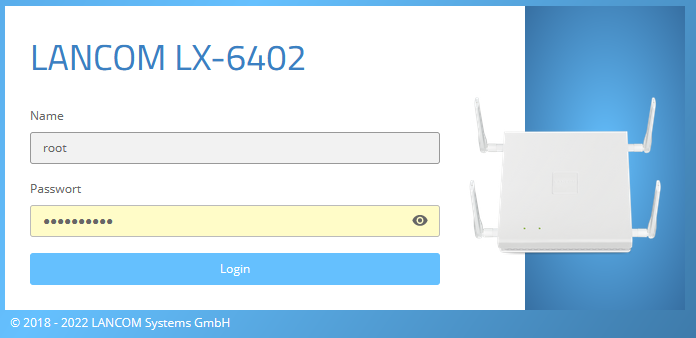
2.1) Open the configuration of the LW-500 in WEBconfig and login with the username root and the main device password.
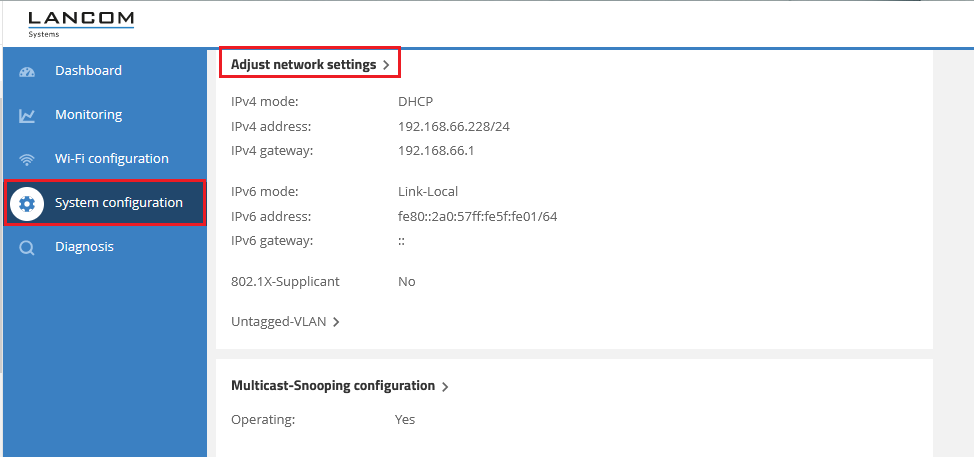
2.2) Switch to the menu System configuration and click on the link Adjust the network settings of this device.
2.3) Set the IPv4 settings to static.
- Use the field IPv4 address to assign an IP address in the CIDR notation (e.g., 192.168.66.124/24 for a class-C network).
- Assign the other IP parameters such as the IPv4 gateway and a primary and/or secondary DNS server.
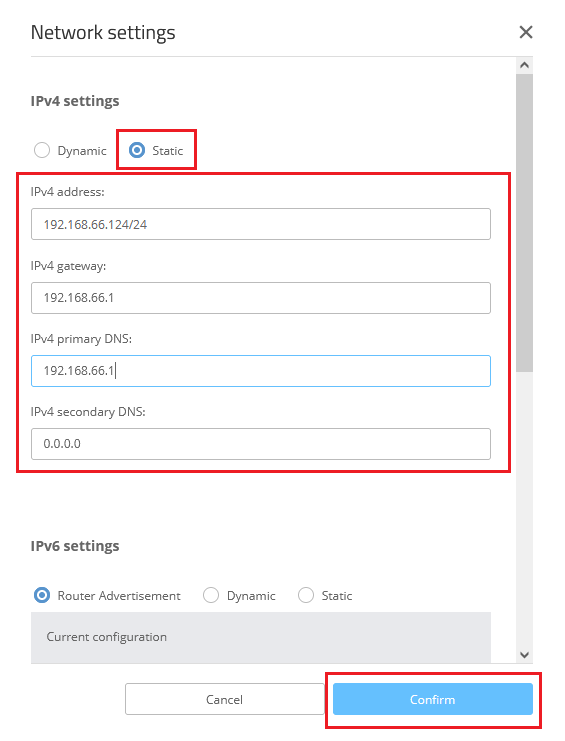
2.4) Click on Confirm to write the configuration back to the access point.
3. Procedure in the LMC:
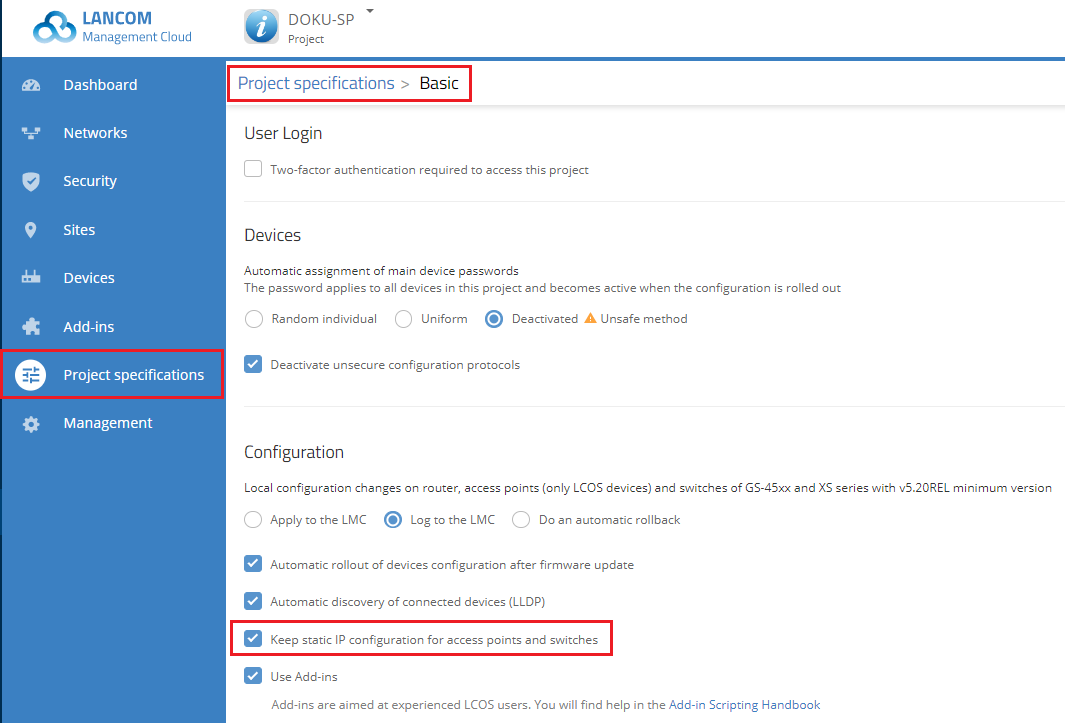
3.1) Make sure that the Keep static IP configuration for access points and switches setting is enabled in the Project specifications → Basic menu.
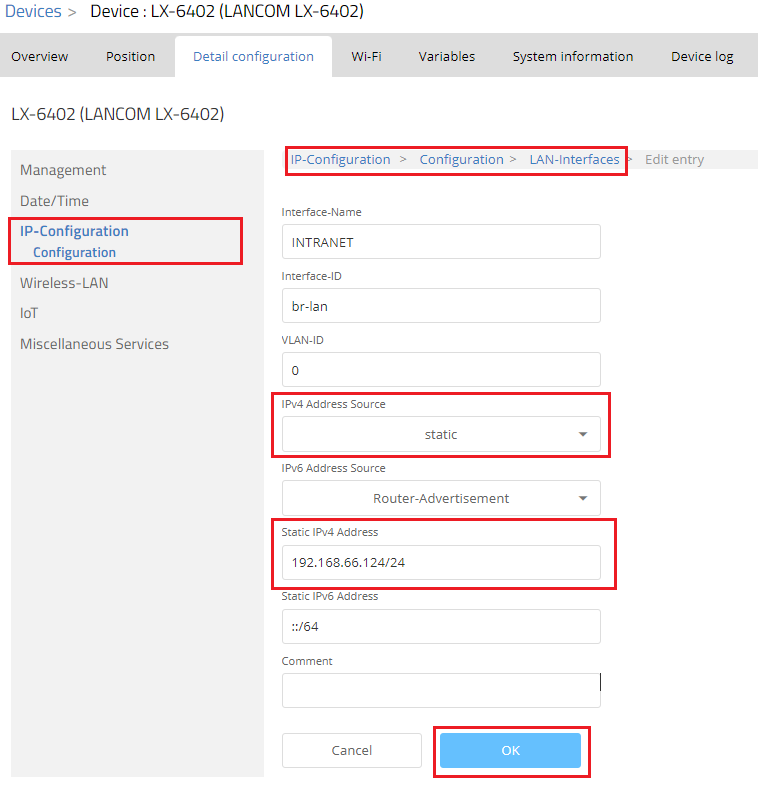
3.2) Switch to the Detail condifuration of the LCOS LX-Access Point and open the menu item IP configuration → Configuration → LAN interfaces.
3.3) In this example, we create a static IPv4 configuration for the default LAN interface INTRANET.
- Set the IPv4 address source to the value static.
- Use the field Static IPv4 address to assign an IP address in the CIDR notation (e.g., 192.168.66.124/24 for a class-C network).
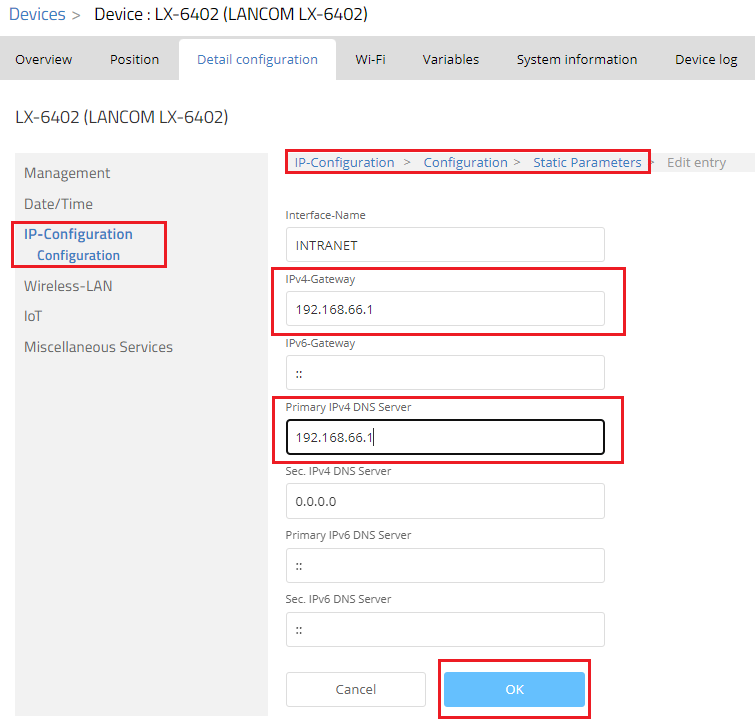
3.4) Open the menu IP configuration → Configuration → Static parameters.
3.5) For the default interface INTRANET, assign the other IP parameters such as the default gateway and a primary and/or secondary DNS server.
3.6) Roll out the changed configuration to the LCOS LX access point.
