Description:
This document describes how to set up a LANCOM router to establish an IKEv2 VPN connection to Windows AZURE.
Requirements:
- LCOS as of version 9.20 (download latest version)
- LANtools as of version 9.20 (download latest version)
Procedure:
When configuring the LANCOM router, please follow the specifications from Microsoft:
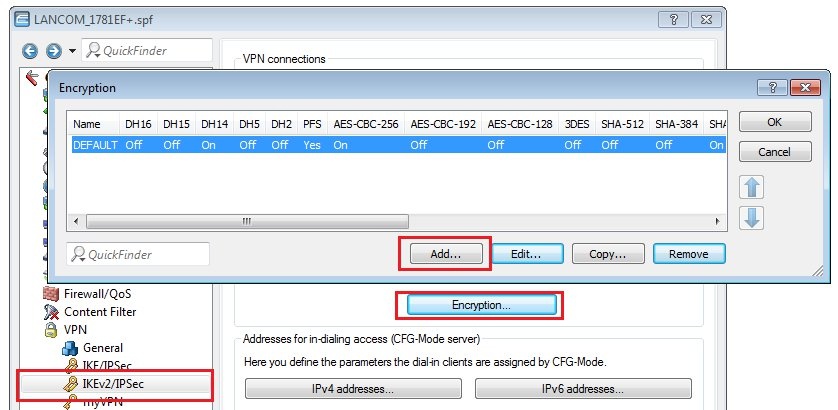
1) Open the dialog VPN → IKEv2/IPSec → Encryption and add a new encryption profile.
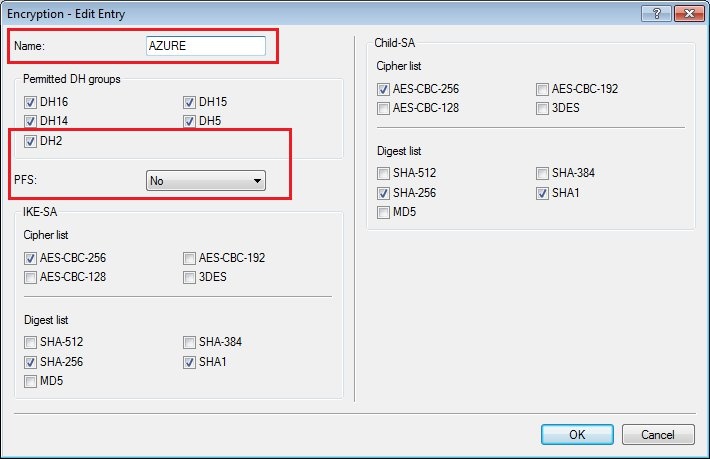
2) It is important that you select DH group 2 and disable PFS.
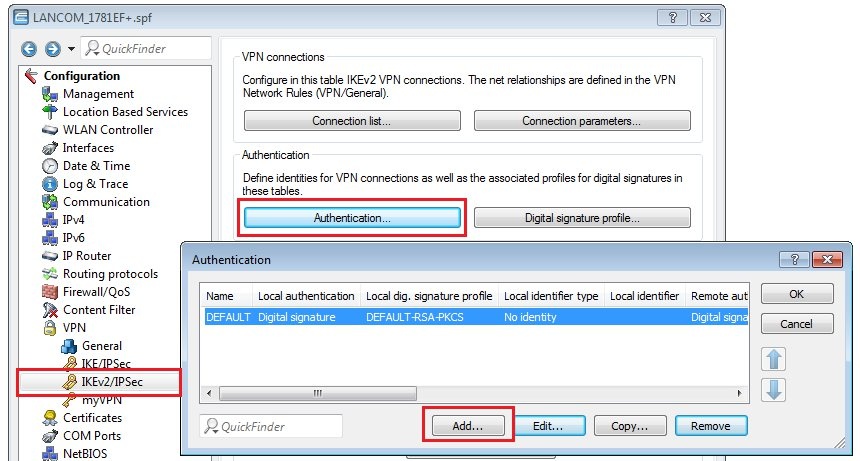
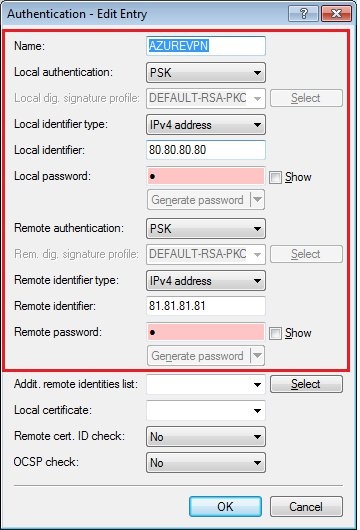
3) Go to the menu VPN → IKEv2/IPSec → Authentication and add a new entry.
- Enter a name for the authentication profile.
- Set the Local authentication parameter to PSK (pre-shared key).
- Set the Local identifier type parameter to IPv4 address.
- In the field for the Local identifier, you need to enter the public IP address of the LANCOM router.
- Enter a local password for use as the pre-shared key.
- Set the remote authentication parameter to PSK (pre-shared key).
- Set the Remote identifier type parameter to IPv4 address.
- In the field for the Remote identifier, you need to enter the public IP address of the Windows AZURE server.
- Enter a remote password for use by the pre-shared key.
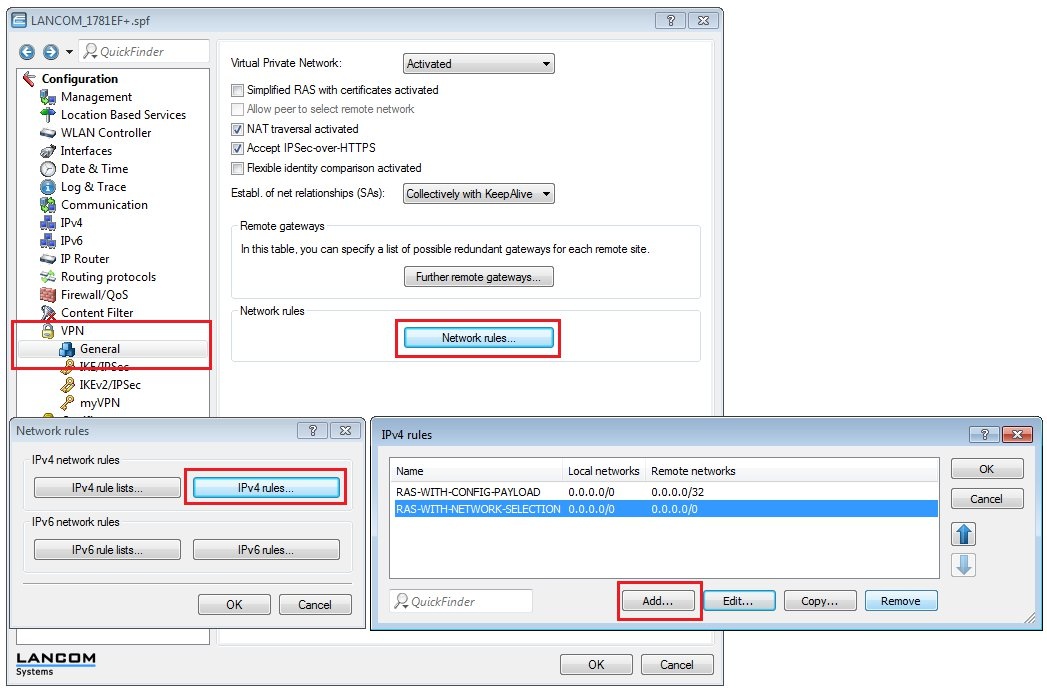
4) Go to the menu VPN → General → Network rules → IPv4 rules and add a new entry.
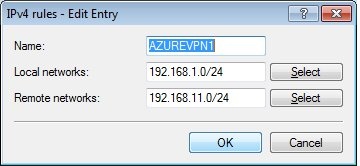
In this example, the local network of the LANCOM router with the IP address range 192.168.1.0/24 is to communicate with the remote (local) network 192.168.11.0/24.
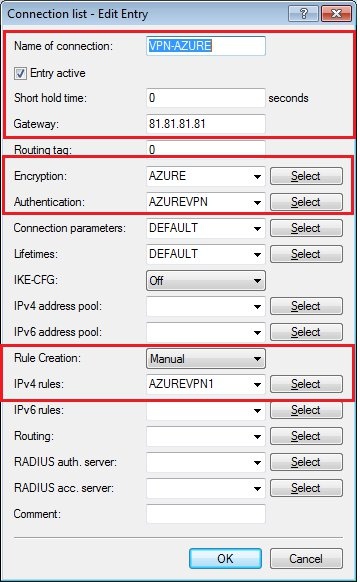
5) Go to the menu VPN → IKEv2/IPSec → Connection list and add a new entry.
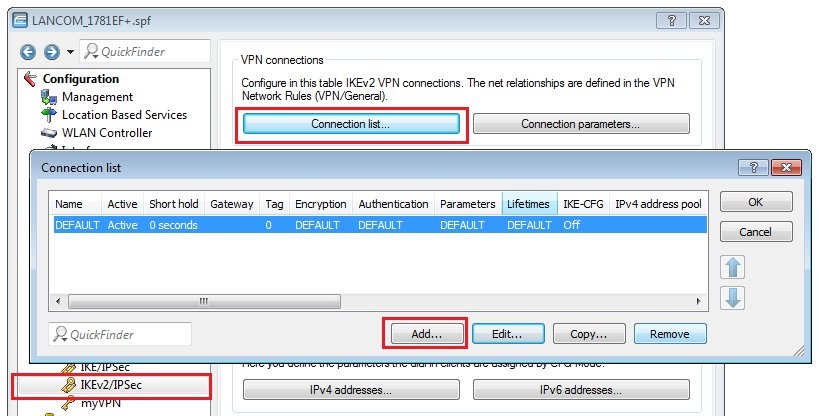
- Enter a name for the connection profile.
- In this example, the VPN connection is established from Windows AZURE, so the short hold time is set to 0.
- In the field for the remote Gateway, you need to enter the public IP address of the Windows AZURE server.
- Set the encryption to the encryption profile created in step 2.
- Set the authentication to the authentication profile created in step 3.
- The rule creation is performed manually.
- The IPv4 rule is set to the rule created in step 4.
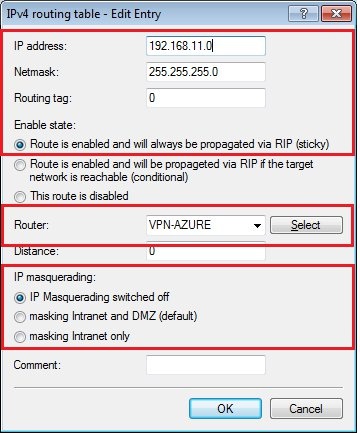
6) Open the menu IP router → Routing → IPv4 routing table and create a new entry for the VPN connection to Windows AZURE.
- The IP address and netmask are the parameters set for the Windows AZURE server.
- Set the Router as the VPN connection that you created.
- Switch IP masquerading off.