

Description:
This guide will help you get started with the LANCOM Management Cloud (LMC) API. You will learn how to create an API key linked to your user profile in the LMC, and how to use it to interact with the API and retrieve device statistic data using JavaScript.
1. Introduction to LMC API
The LANCOM Management Cloud (LMC) API provides a way for developers to programmatically access and manage resources in your LMC account. You can interact with the API to retrieve various data, including device data, network configuration, monitoring data and more.
Key Concepts
API Key and Authorization: This is an authentication key used to authorize API requests via external clients. LMC requires that you authenticate API calls using a valid API key in the request header.
Endpoint: A URL through which you can access a specific resource or service, like fetching device statistics.
2. Creating a User-Bound API Key in the LMC
To interact with the LMC API, you first need to create an API key tied to your user profile. Follow these steps:
Step 1: Login to LMC
Navigate to the LANCOM Management Cloud.
Log in with your credentials (username and password).
Step 2: Navigate to Your User Profile
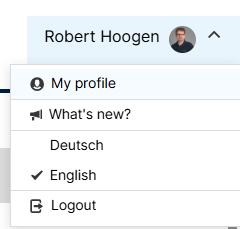
Once logged in, go to the User Profile. You can find this in the top-right corner.
Click on your <Username> → My profile.
Step 3: Create an API Key
In your user settings, open the section titled API Keys.
- Make sure, that API Keys are enabled for the particular project (see Enable API Keys for a project for more information).

Click on Create API Key and enter a name. This will generate an API key that is associated with your user account.
- Select a project to restrict the access.
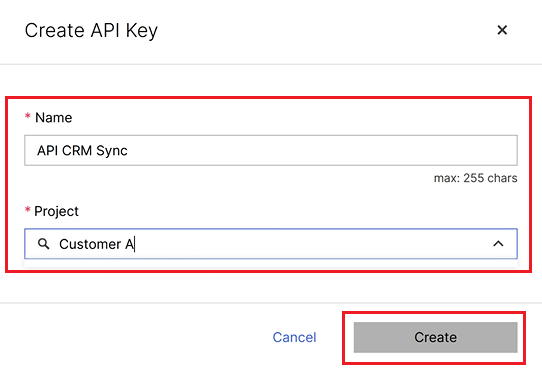
- Click on Create.
Copy the newly generated API key to use in your API requests. This key will be used to authenticate your API calls.
Step 4: Store Your API Key securely
Store your API key securely, as it provides access to your LMC account and its resources. Do not share it publicly.
The LMC does not store the generated API key, so it cannot be recovered if lost!
3. Basic API Call Example
Once you have your API key, you can begin making API requests to retrieve information from the LMC.
For this example, we will use the devices endpoint to get device statistic data registered under your LMC project.
Example cURL Command
Here’s an example cURL command to retrieve device statistics. You will need to replace <accountId> with your actual account ID and <API_KEY> with your generated API key.
# Linux / MacOS (terminal)

curl -v -X 'GET' \
'https://cloud.lancom.de/cloud-service-devices/accounts/<accountId>/device_statistics' \
 -H 'accept: application/json' \
 -H 'Authorization: LMC-API-KEY <API_KEY>'


# Windows (cmd)

curl -v -X GET ^
"https://cloud.lancom.de/cloud-service-devices/accounts/<accountId>/device_statistics" ^
-H "accept: application/json" ^
-H "Authorization: LMC-API-KEY <API_KEY>"
Parameters
GET: HTTP method to retrieve data from the specified endpoint.
accept: application/json: Specifies that the response should be in JSON format.
Authorization: You pass your API key here in the format
LMC-API-KEY <your_api_key>.
Replace <accountId> and <API_KEY> with actual values from your account and API key.
Example Response
The response should look something like this (sample data):
{
  "id": "<accountId>",
  "heartbeatState": {
    "_unset": 0,
    "_matched": 0,
    "_total": 6,
    "active": 5,
    "inactive": 1
  },
  ...
}
4. Request API using JavaScript
To automate the process of fetching data, you can use JavaScript (JS) to send API requests.
Step 1: Install Node.JS
First, you need to install Node.JS to run javascript files. Please ensure that you have the Node.JS runtime library successfully installed by running the following command in your terminal:
node -v
Step 2: JavaScript Code Example
Below is a JS example fetch devices statistic data by sending a GET request to the LMC API.
// Replace with your actual API key and account ID
const apiKey = 'eyJr...UQ19E';  // API Key
const accountId = 'your_account_id';  // Replace with your account ID

// Define the endpoint URL
const endpoint = `https://cloud.lancom.de/cloud-service-devices/accounts/${accountId}/device_statistics`;

// Function to fetch device statistics
async function fetchDeviceStatistics() {
    try {
        const response = await fetch(endpoint, {
            method: 'GET',
            headers: {
                'Authorization': `LMC-API-KEY ${apiKey}`,
                'Accept': 'application/json'
            }
        });

        if (!response.ok) {
            throw new Error(`HTTP error! Status: ${response.status}`);
        }

        const data = await response.json();
        console.log('Device Statistics:', data);
    } catch (error) {
        console.error('Error fetching device statistics:', error);
    }
}

// Call the function
fetchDeviceStatistics();
Step 3: Run the JavaScript code
In the terminal run the code using the Node.js JavaScript runtime.
node <yourfilename>.js
This will log the device statistics retrieved from the LMC API.
If you want to see how to use python to make an example request to the LMC API , is explained in the article Code example: List all sites using Python.
5. Best Practices for Working with the LMC API
Secure Your API Key: Always keep your API key secret. Never expose it in public repositories or shared code.
Error Handling: Implement proper error handling in your application to manage potential issues like timeouts, incorrect API keys, or server errors.
API Documentation: Refer to the official LANCOM API documentation. for detailed information on all available endpoints, parameters, and response formats.
6. Conclusion
This guide has shown you how to get started with the LANCOM Management Cloud API. You learned how to generate a user-bound API key, make a simple API request using cURL, and interact with the API in a JavaScript application.
For further information and advanced use cases, refer to the official LANCOM API documentation.
