
Description:
This article describes how to configure MAC authentication with Dynamic VLAN on a LANCOM router operating RADIUS.
Requirements:
- LCOS as of version 10.90 RC1 (download latest version)
- LANtools as of version 10.90 RC1 (download latest version)
- Previously configured and functional VLAN for the devices requiring authentication
Procedure:
1) Open the configuration of the router in LANconfig and navigate to the menu item Interfaces → 802.1X → RADIUS servers.
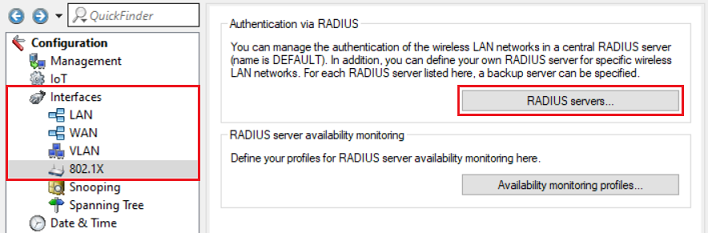
2) Click on the button Default server to create an entry for the RADIUS server.
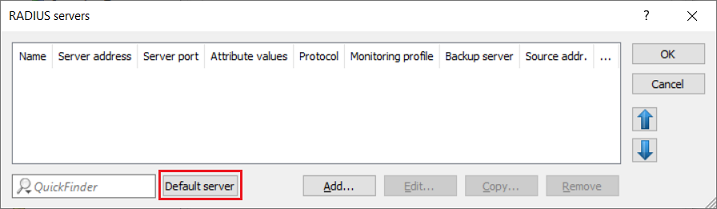
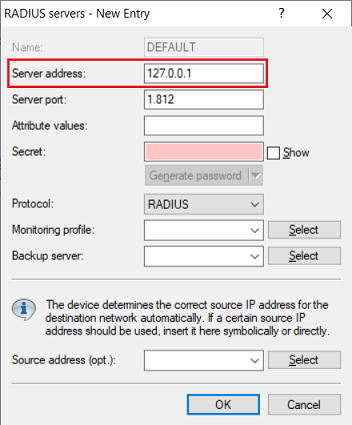
3) Set the server address to the loopback address 127.0.0.1. This ensures that the RADIUS server integrated in the router is used.
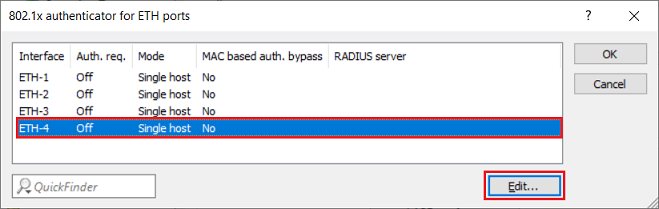
4) Go to the menu Interfaces → LAN → 802.1x authenticator for ETH ports.
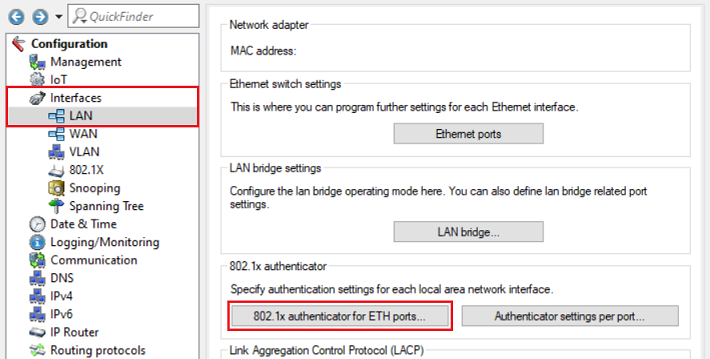
5) Select the physical Ethernet interface that the device requiring authentication is connected to (in this example ETH-4) and click Edit.
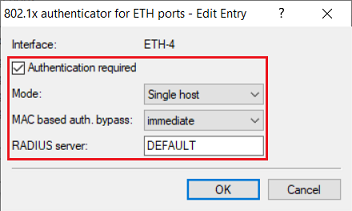
6) Adjust the following parameters:
- Enable the option Authentication required.
- Make sure that the Mode option is set to Single host.
- In the drop-down menu for MAC-based auth. bypass, select the option immediate. This performs authentication based on the MAC address.
- In the field RADIUS server enter the name of the RADIUS server created in step 3 (in this example DEFAULT).
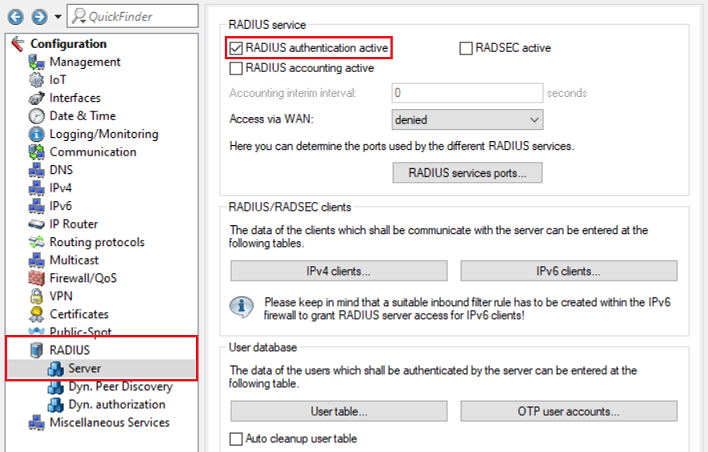
7) Go to the menu RADIUS → Server and set a checkmark for RADIUS authentication active.
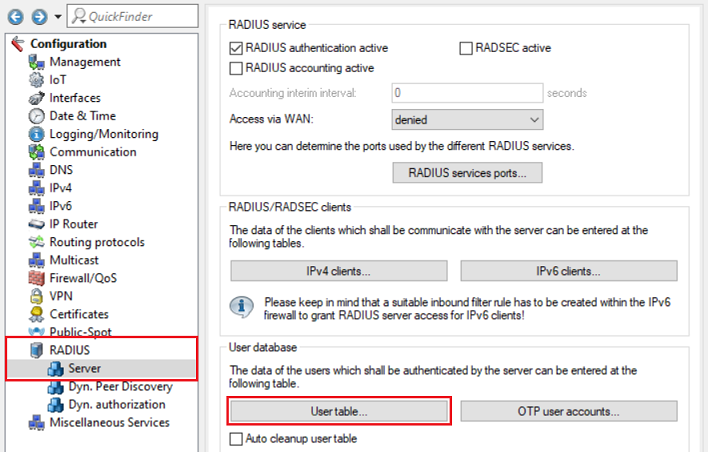
8) Go to the menu RADIUS → Server → User table.
9) Create a new entry and set the following parameters:
- Name / MAC address : Enter the MAC address of the device being authenticated in the format 00a057123456.
- Password : Enter the MAC address of the device being authenticated in the format 00a057123456.
- VLAN ID : Enter the VLAN to be assigned to the user (in this example the VLAN 5).
- Protocol restriction for authentication : Uncheck all protocols except PAP.
- Expiry type : From the drop-down menu, select Never so that the user account remains valid permanently.
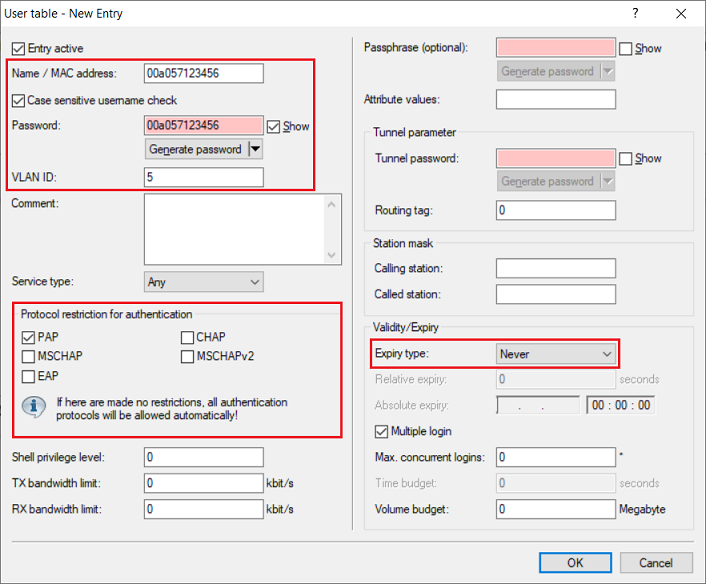
10) This concludes the configuration. Write the configuration back to the router.
