Description:
Requirements:
- Both sites already have a configured and functional Internet connection
- Both sites have separate IP address ranges
- LCOS as of version 9.20 (scenario 1), LCOS as of version 10.20 (scenario 2) (download latest version)
- LANtools as of version 9.20 (scenario 1), LANtools as of version 10.20 (scenario 2) (download latest version)
Scenario:
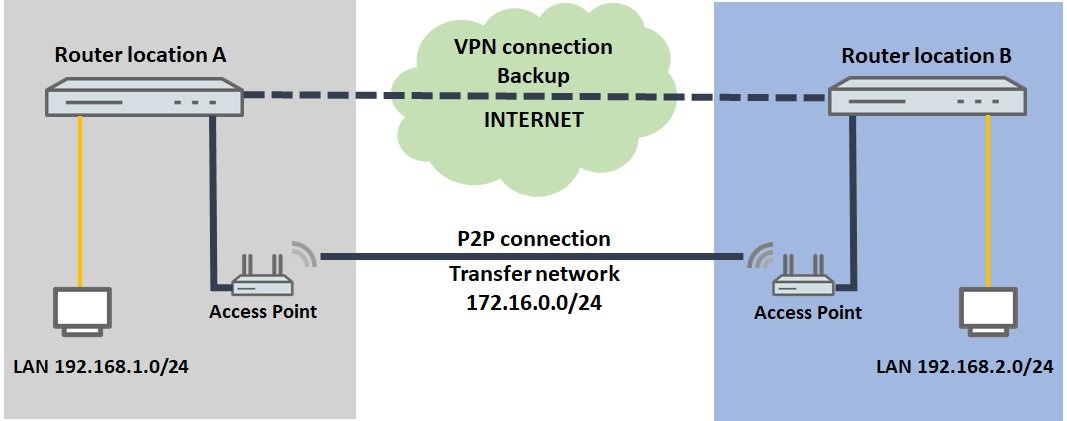
- There are two sites: Each site has an access point and a router.
- The access points support the P2P link
- The routers use the P2P link between the access points to establish a plain Ethernet connection (IPoE).
- If the P2P link fails, a VPN connection is established between the two sites.
2) The P2P link is established using the WLAN module integrated in the router
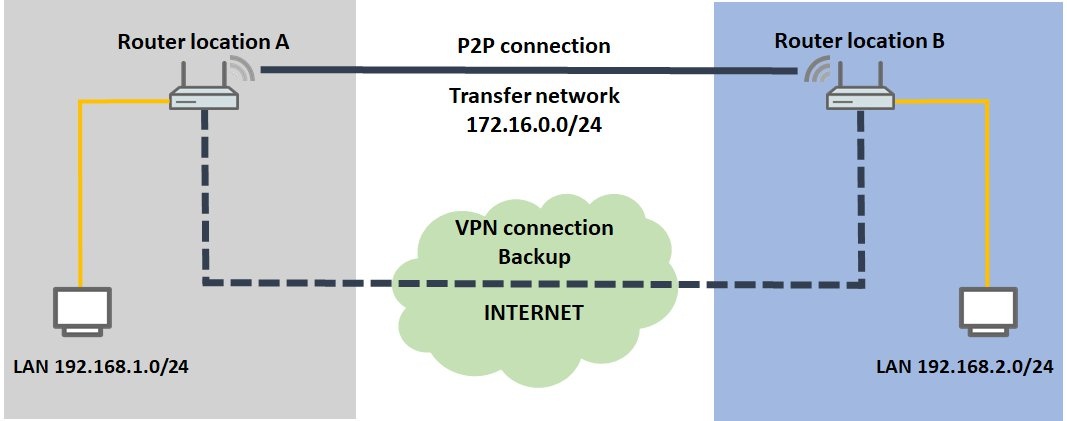
- There are two sites: Each site has a WLAN router.
- The WLAN routers implement the P2P link
- The routers use the P2P link between them to establish a plain Ethernet connection (IPoE).
- If the P2P link fails, a VPN connection is established between the two sites.
Procedure:
1.1) Set up a VPN connection router B via the setup wizard. The procedure is described in this Knowledge Base article.
1.2) Set up a plain Ethernet connection (IPoE) .
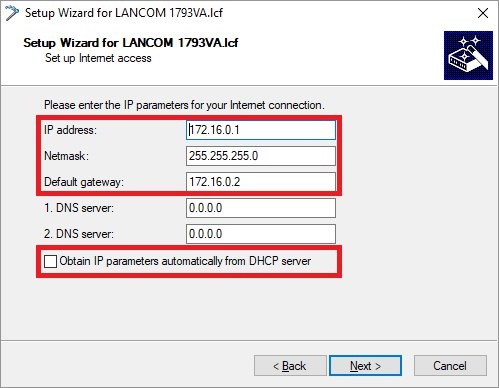
1.2.1) Under the IP parameters, enter a transfer network used forcommunications between routers A and B.1.1) Set up a VPN connection to router B using the Setup Wizard.
- IP address: Give router A an IP address from the transfer network.
- Netmask: Enter the netmask of the transfer network.
- Default gateway: Enter the IP address of router B in the transfer network (see step 3.2.1).
The IP address range of the transfer network must not be in use at site A or site B, otherwise problems with routing will occur!
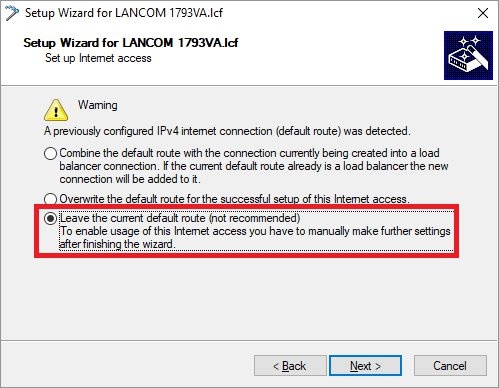
1.2.2) Select Leave the current default route to use the current Internet connection.
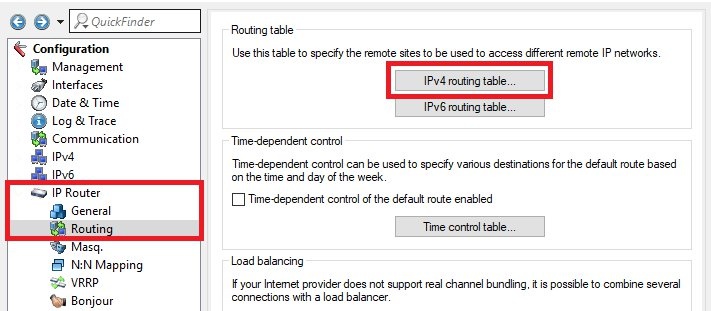
1.3) Open the configuration of the router in LANconfig and switch to the menu item IP router → Routing → IPv4 routing table.
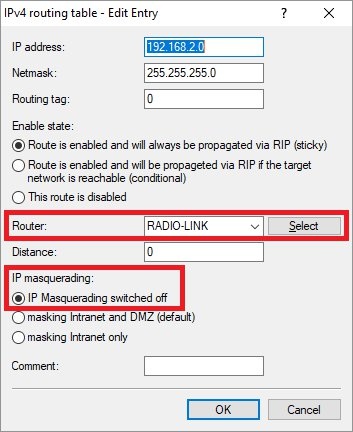
1.3.1) Edit the routing entry of the VPN connection to site B and, under Router, enter the IPoE remote site created in step 1.2.
The item IP masquerading has to be left atIP masquerading switched off.
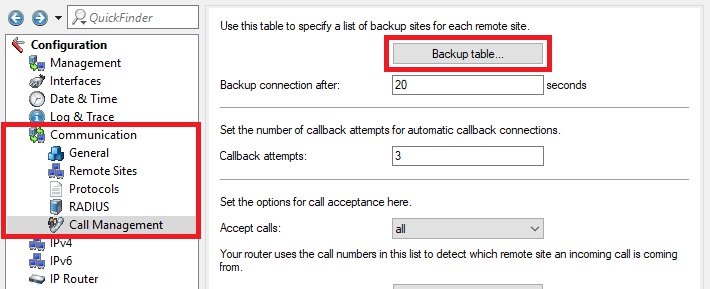
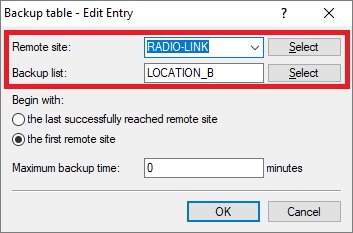
1.4.1) Store the following parameters:
- Remote site: From the drop-down menu, select the IPoE connection you created in step 1.2.
- Backup list: Select the VPN remote site (see Step 1.1).
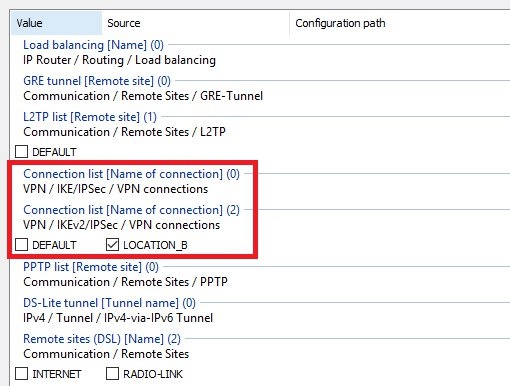
If you are using an IPoE or DHCPoE connection, ICMP polling must be set up for line monitoring. Otherwise, no backup connection will be established.
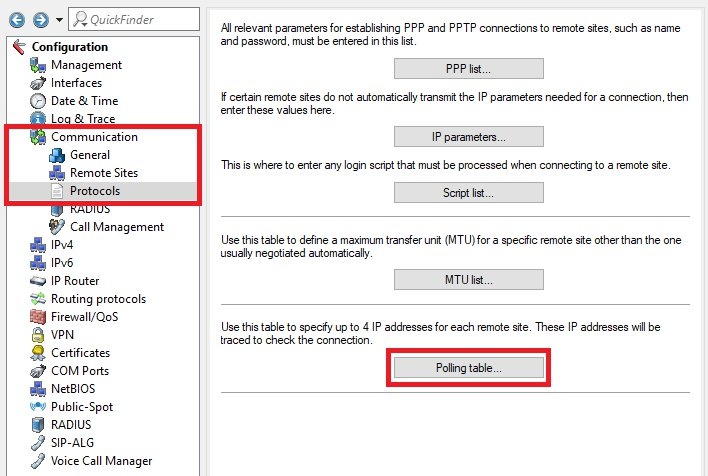
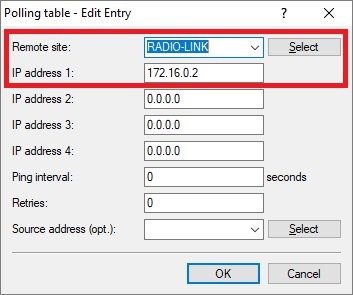
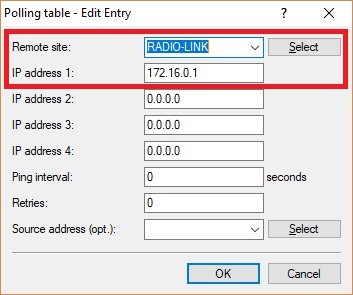
1.5.1) Create a new entry and enter the following parameters:
- Remote site: From the drop-down menu, select the IPoE connection created in step 1.2.
- IP address 1: Enter the IP address of router B in the transfer network (see step 3.2.1).
The access point must be connected to the router’s DSL port.
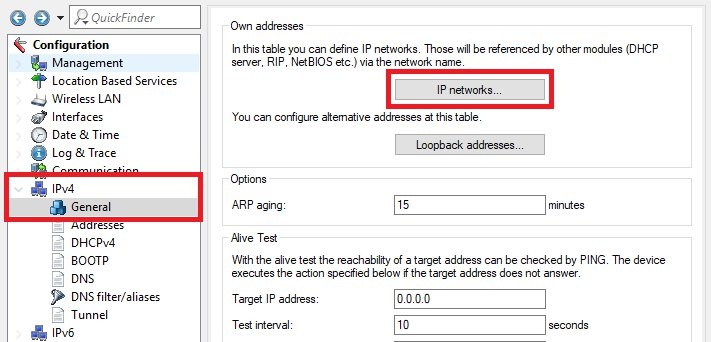
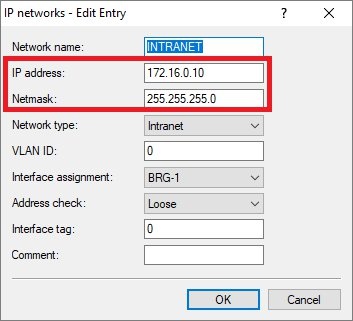
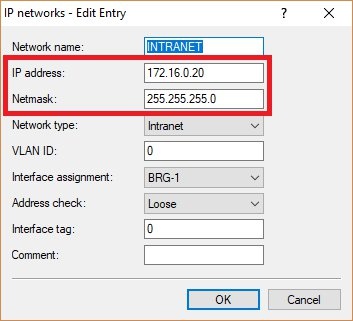
2.1.1) Edit the network INTRANET, assign an IP address from the transfer network to access point A and enter the relevant netmask.
2.2) Write the configuration back to the access point.
3.2) Set up a plain Ethernet connection (IPoE).
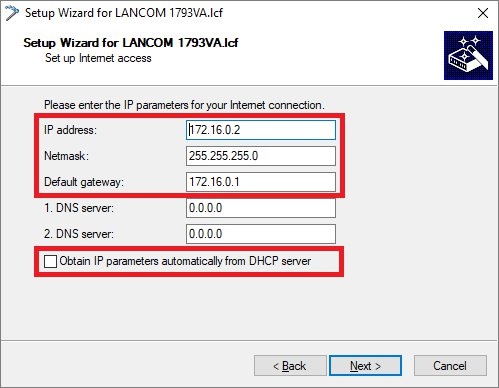
3.2.1) Under the IP parameters, enter a transfer network used for communications between routers A and B.
- IP address: Give router B an IP address from the transfer network.
- Netmask: Enter the netmask of the transfer network.
- Default gateway: Enter the IP address of router A in the transfer network (see step 1.2.1).
The IP address range of the transfer network must not be in use at site A or site B, otherwise problems with routing will occur!
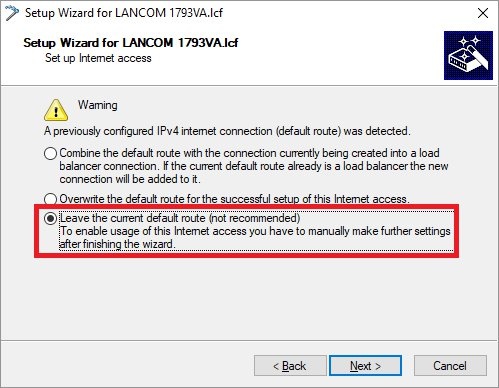
3.2.2) Select Leave the current default route to use the current Internet connection.
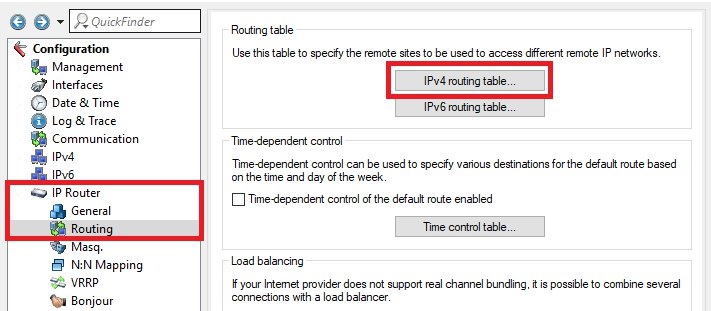
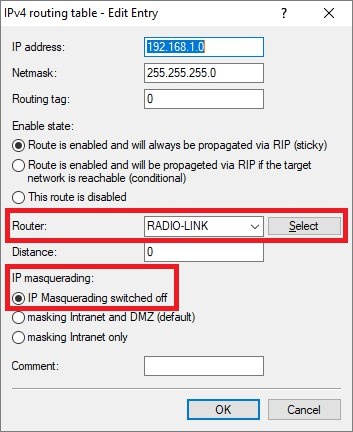
3.3.1) Edit the routing entry of the VPN connection to site A and, under Router, enter the IPoE remote site created in step 3.2.
The item IP masquerading has to be left at IP masquerading switched off
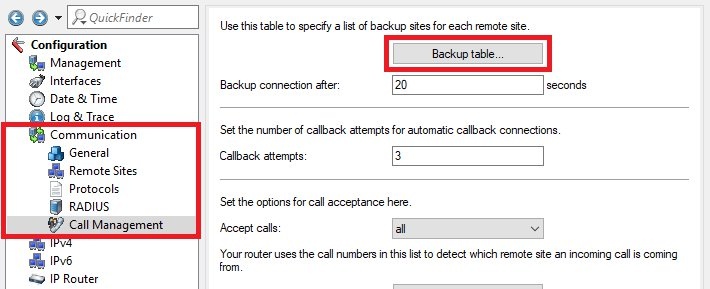
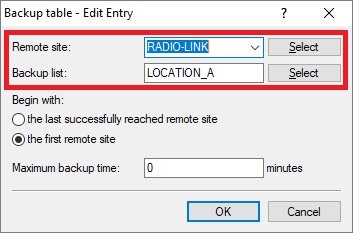
3.4.1) Store the following parameters:
- Remote site: From the drop-down menu, select the IPoE connection you created in step 3.2.
- Backup list: Select the VPN remote site (see step 3.1).
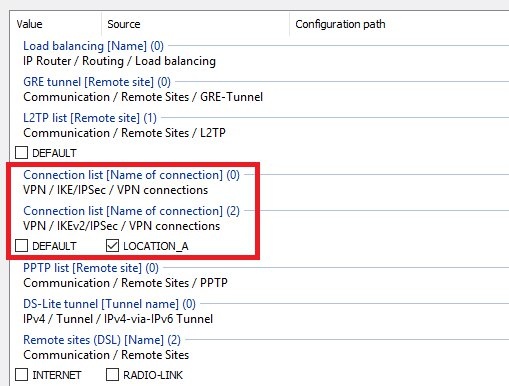
If you are using an IPoE or DHCPoE connection, line monitoring by means of ICMP polling must be set up. Otherwise, no backup connection will be established.
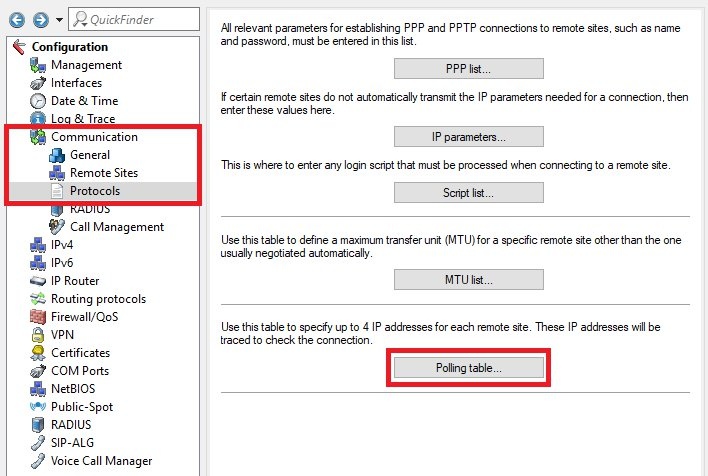
3.5.1) Create a new entry and enter the following parameters:
- Remote site: From the drop-down menu, select the IPoE connection created in step 3.2.
- IP address 1: Enter the IP address of router A in the transfer network (see step 1.2.1).
The access point must be connected to the router’s DSL port.
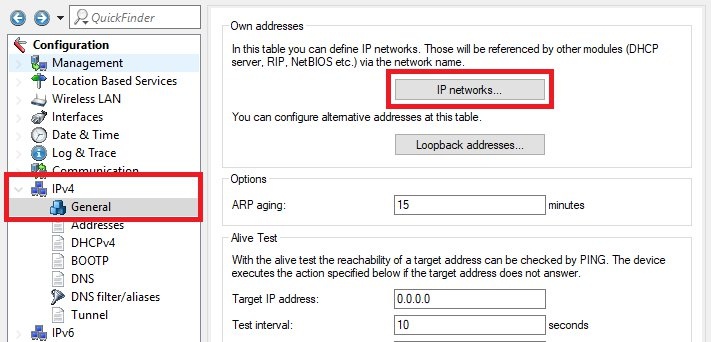
4.1.1) Edit the networ kINTRANET, assign an IP address from the transfer network to access point B and enter the relevant netmask.
Scenario 2: The P2P link is established using the WLAN module integrated in the router
The configuration of the two routers corresponds to that of scenario 1. Some additional adjustments still have to be made.
The following steps must be performed on both routers.
1) Set up a WLAN point-to-point link.
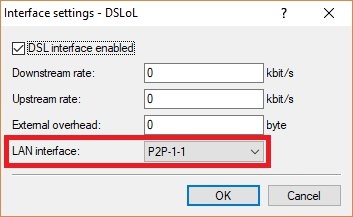
2) Switch to the menu Interfaces → WAN → Interface settings → DSLoL.
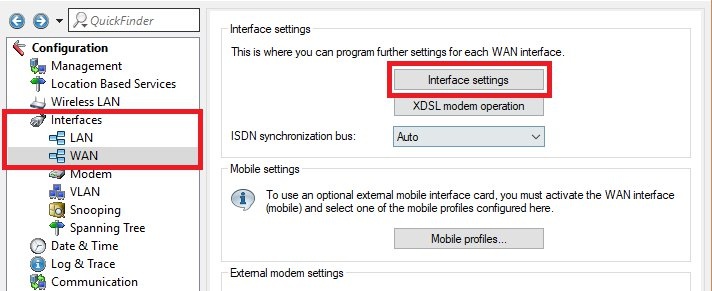
2.1) For the LAN interface, use the drop-down menu to select the P2P interface used in step 1.
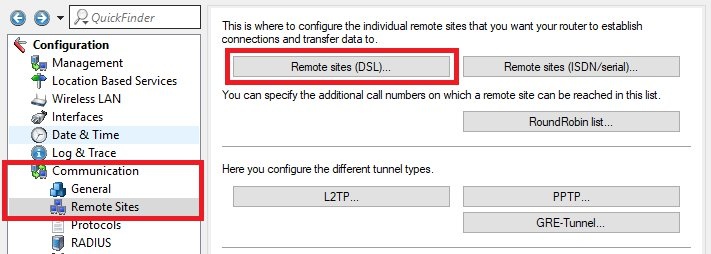
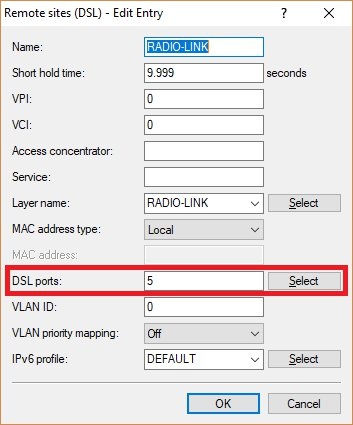
3.1) Edit the IPoE remote site (see steps 1.2 and 3.2) and select the DSL port for DSLoL.
- Router with four LAN ports: DSL port 5
- Router with two LAN ports: DSL port 2