Description:
Virtual Port Channel (VPC) is a virtualization technology that makes two interconnected switches appear as a single layer 2 logical node for devices at the underlying access level. This is ensured by the virtual port channel network established via VPC, called the "VPC-Peer-Link". The connected devices can be a switch, server or other network device that supports the link aggregation technology.
This article describes, how VPC can be configured on LANCOM Switches with LCOS SX 5.20 / 5.30.
Either stacking or VPC can be used, but not both. The VPC implementation in LANCOM switches is not compatible with the implementation of other manufacturers. |
VPC must be configured via the serial interface, otherwise the connection to the switch will be lost by changing the management VLAN. When using Spanning Tree the scenario, the Bridge Priority must be the same on both VPC nodes (this is the case with the default configuration). It is also necessary to specify a higher priority on the Downlink switches. This ensures, that both VPC nodes become the Root bridge. You can find additional information regarding Spanning Tree in the following Knowledge Base articles: |
Requirements:
- Two of the following LANCOM switch models:
- Serial cable for accessing the switches via the serial interface
- CLI client for accessing the switches via the serial interface (e.g. PuTTY)
Scenario:
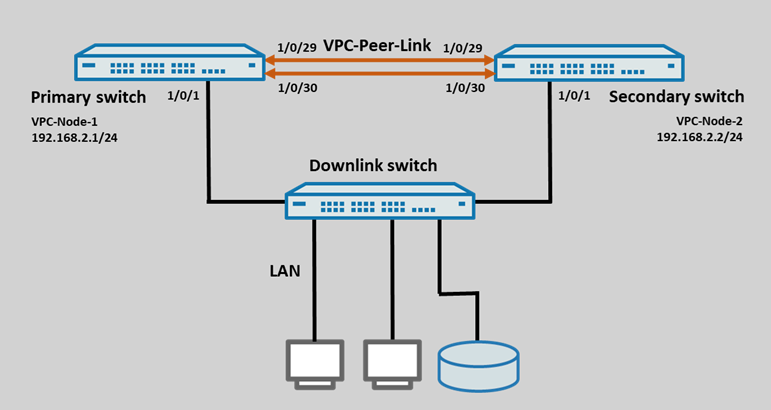
- Two XS-4530YUP switches are to be connected with each other via VPC.
- The stack ports 1/0/29 and 1/0/30 are used for the VPC-Peer-Link.
- In the local network the VPC-Node-1 has the IP address 192.168.2.1/24 and the VPC-Node-2 the IP address 192.168.2.2/24.
- A downlink switch is to be connected via port 1/0/1 of the two VPC nodes.
Procedure:
1) Configuring VPC on the VPC-Node-1:
1.1) Changing the stacking ports to the "Ethernet" mode:
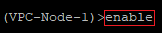
1.1.1) Connect to the first switch (VPC-Node-1) via the serial interface and enter the command enable to gain extended rights.
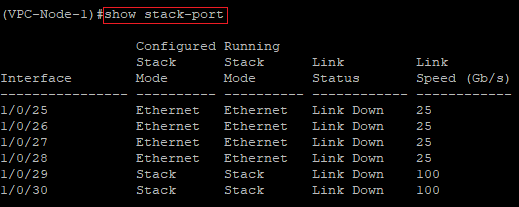
1.1.2) Enter the command show stack-port to check, which ports are configured in "Stack" mode. In this example the ports 1/0/29 and 1/0/30 are configured in this way.
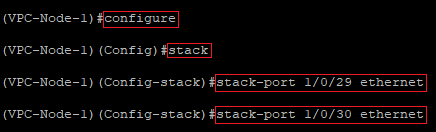
1.1.3) Modify the following parameters:
- Enter the command configure to open the configuration menu.
- Enter the command stack to open the stack configuration.
- Afterwards, change the port mode for both ports from Stack to Ethernet with the command stack-port <port number> ethernet.
- In this example the commands are as follows:
- stack-port 1/0/29 ethernet
- stack-port 1/0/30 ethernet
1.1.4) Modify the following parameters:
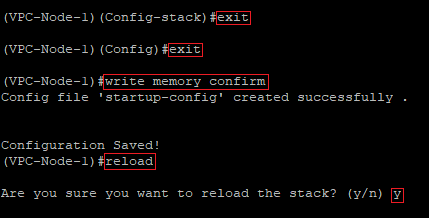
- Enter the command exit twice to return to the root level of the switch.
- Enter the command write memory confirm to save the configuration as the start configuration. The parameter confirm ensures, that the write process does not have to be acknowledged.
- Afterwards, perform a a restart of the switch with the command reload and acknowledge the query with the <y> key.
The restart of the switch is mandatory to change the port mode from Stack to Ethernet. |
1.2) Check the port change and activate VPC:
1.2.1) Modify the following parameters:
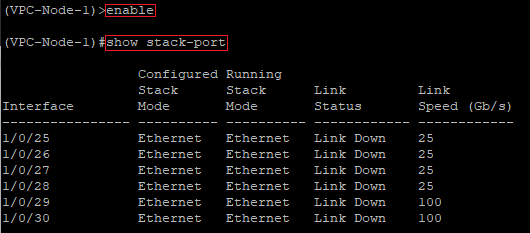
- Reconnect to the switch via the CLI after the restart and enter the command enable to gain extended rights.
- Use the command show stack-port, to check if the port mode has been changed to Ethernet.
1.2.2) Modify the following parameters:
- Enter the command configure to open the configuration menu.
- Activate the VPC functionality with the command feature vpc.

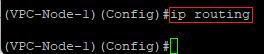
1.2.3) Activate the routing functionality with the command ip routing.
1.3) Configure the Layer 3 interface for the VPC keepalive:
For the VPC keepalive (split-brain detection), both switches require a dedicated layer 3 interface. Either an outband interface (service port / OOB) or an in-band interface (VLAN interface) can be used for this task. On switches with a service port, LANCOM Systems recommends to use this for the VPC keepalive. Only the XS-6128QF does not have a service port, so a VLAN interface must be configured on it for keepalive. |
1.3.1) Configure the Layer 3 interface for the VPC keepalive on the service port (XS-4530YUP, XS-4554YUP, YS-7154CF, CS-8132F):
1.3.1.1) Modify the following parameters:
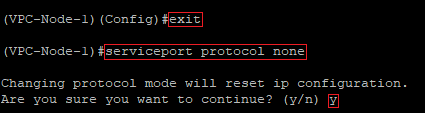
- Enter the command exit to return to the root level of the switch.
- Deactivate DHCP on the service port with the command serviceport protocol none and acknowledge the query with the <y> key.
1.3.1.2) Modify the following parameters:
- Afterwards, assign an IP address from an unused network as well as a subnetmask to the service port with the command serviceport ip <IP address> <subnetmask>.
- In this example, the command is as follows:
- serviceport ip 10.10.10.1 255.255.255.0

If the VPC nodes also should be able to communicate with the Internet, a gateway must be specified on the service port as well. Use the command serviceport ip <IP address> <subnetmask> <default gateway> to do this. In this example, the command is as follows: serviceport ip 10.10.10.1 255.255.255.0 10.10.10.100 
|
1.3.2) Configure the Layer 3 interface for the VPC keepalive on a VLAN interface (XS-6128QF only):
1.3.2.1) Modify the following parameters:
- Enter the command exit to return to the root level of the switch.
- Enter the command vlan database to open the VLAN configuration.
- Create a new VLAN with the command vlan <VLAN ID>. The VLAN must still be unused.
- In this example the command is as follows:
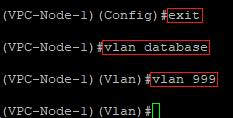
1.3.2.2) Modify the following parameters:
- Activate the routing functionality for the VLAN created in step 1.3.2.1 with the command vlan routing <VLAN ID>.
- In this example the command is as follows:

1.3.2.3) Modify the following parameters:
- Enter the command exit to return to the root level of the switch.
- Afterwards, enter the command configure to open the configuration menu.
- Use the command interface vlan <VLAN ID> to switch to the VLAN created in step 1.3.2.1.
- In this example the command is as follows:
- Enter an IP address from an unused network as well as a subnetmask for the VLAN interface with the command ip address <IP address /subnetmask in CIDR notation>.
- In this example the command is as follows::
- ip address 10.10.10.1 /24
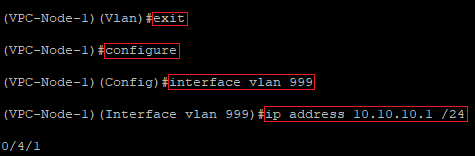
1.4) Create the VPC domain and configure the VPC keepalive:
1.4.1) Modify the following parameters:
- Enter the command configure on the root level of the switch to open the configuration menu.
- Create a VPC domain with the command vpc domain 1.
- Configure the keepalive between the two VPC nodes with the command peer-keepalive destination <IP address of the Layer 3 interface on the VPC-Node-2> source <IP address of the Layer 3 interface on the VPC-Node-1>.
- In this example the command is as follows:
- peer-keepalive destination 10.10.10.2 source 10.10.10.1

1.4.2) Modify the following parameters:
- Use the commands peer detection enable and peer-keepalive enable to activate the keepalive.
- Enter a priority for the VPC keepalive with the command role priority <value>. The priority decides which node becomes the Primary and which one the Secondary. The lower the value, the higher the priority.
- In this example the command is as follows:
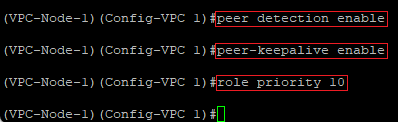
1.5) Modify the System MAC:
In order for both VPC nodes to represent themselves to downlink switches without VPC support as one device, a virtual MAC address has to be entered on both VPC nodes.
Modify the following parameters:
- Enter the command system-mac <MAC address> to set a virtual MAC address for the VPC. This must be the same on both VPC nodes.
- In this example the command is as follows:
- system-mac 7A:E6:B0:6D:DD:EE
To prevent conflicts with other systems, it is recommended to use a Locally Administered MAC Address (LAA). If a MAC address generator is used, the U/L Flag = 1 (LAA) should be set. |
If additional VPC nodes are operated in the same scenario, it is mandatory to use a different System MAC on these. Otherwise, this would lead to communication problems! |

1.6) Create the VPC-Peer-Link:
The Management VLAN must not pass through the VPC-Peer-Link. In the default settings the VLAN 1 is used as the Management VLAN. If this VLAN should pass through the VPC-Peer-Link, the Management VLAN must be replaced by a dummy VLAN and the routing functionality for VLAN 1 has be activated. |
1.6.1) Modify the following parameters:
- Enter the command exit twice to return to the root level of the switch.
- Switch to the VLAN configuration with the command vlan database.
- Create a new VLAN with the command vlan <VLAN ID>. The VLAN must still be unused and it serves as a dummy VLAN.
- In this example the command is as follows:
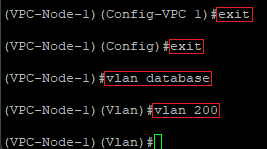
1.6.2) Modify the following parameters:
- Enter the command exit to return to the root level of the switch.
- Replace the previous management VLAN with the dummy VLAN created in step 1.6.1 with the command network mgmt_vlan <VLAN ID>.
- In this example the command is as follows:
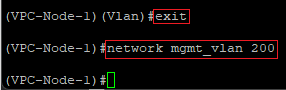
1.6.3) Modify the following parameters:
- Switch to the VLAN configuration again with the command vlan database.
- Activate the routing functionality for the VLAN 1 with the command vlan routing 1.
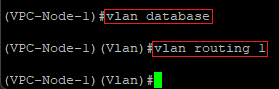
1.6.4) Modify the following parameters:
- Enter the command exit to return to the configuration menu.
- Enter the command configure on the root level of the switch to open the configuration menu.
- Switch to the VLAN 1 with the command interface vlan 1.
- Enter an IP address from an unused network and a subnetmask with the command ip address <IP address /subnetmask in CIDR notation>.
- In this example the command is as follows:
- ip address 192.168.2.1 /24
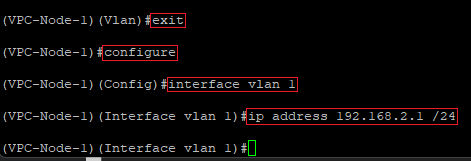
1.6.5) Modify the following parameters:
- Enter the command exit to return to the configuration menu.
- Create a default route for the network created in step 1.6.4 with the command ip route default <IP address of the default gateway>.
- In this example the command is as follows:
- ip route default 192.168.2.100

1.6.6) Modify the following parameters:
- Enter the command ip name server <IP address of a DNS server> to specify a DNS server.
- In this example the command is as follows:
- ip name server 192.168.2.100

1.6.7) Modify the following parameters:
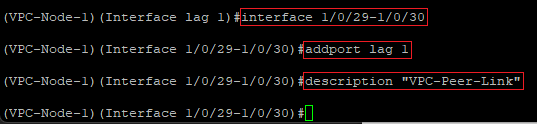
- Create a Link Aggregation Group with the command interface lag <LAG ID>.
- In this example the command is as follows:
- You can optionally add a comment for the created Link Aggregation Group with the command description <comment>. Using quotation marks ensures, that comments with spaces can be used.
- In this example the command is as follows:
- description "VPC-Peer-Link"
- Use the command no spanning-tree port mode to deactivate Spanning Tree for the created Link Aggregation Group.
- Use the command vpc peer-link to activate the VPC-Peer-Link for the created Link Aggregation Group.
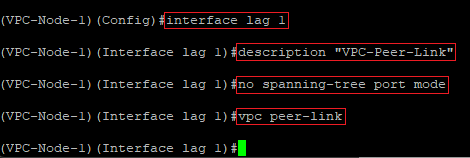
1.6.8) Modify the following parameters:
- Use the command interface <Interface 1>-<Interface 2> to edit the ports modified in step 1.1.
- In this example the command is as follows:
- Add the ports to the Link Aggregation group created in step 1.6.7 with the command addport lag 1.
- You can optionally add a comment for the interfaces with the command description <comment>. Using quotation marks ensures, that comments with spaces can be used.
- In this example the command is as follows:
- description "VPC-Peer-Link"
1.6.9) Modify the following parameters:
- Enter the command exit to return to the configuration menu.
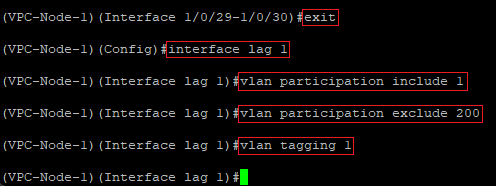
- Enter the command interface lag 1 to edit the Link Aggregation Group created in step 1.6.7.
- Use the command vlan participation include <VLAN ID> to allow the VLANs, which should communicate via the VPC Link.
- In this example the command is as follows:
- vlan participation include 1
- Use the command vlan participation exclude <VLAN ID> to ban the Management VLAN, as it is not allowed to communicate via the VPC Peer Link.
- In this example the command is as follows:
- vlan participation exclude 200
- Use the command vlan tagging <VLAN ID> to activate the VLAN tagging for the VLAN, which should communicate via the VPC Peer Link.
- In this example the command is as follows:
If the Layer 3 interface for the VPC keepalive was configured in step 1.3.2 on an XS-6128QF, additionally the VLAN specified in this step has to be allowed (vlan participate include 999). Also, the VLAN tagging for the VLAN ID specified in step 1.3.2 has to be activated (vlan tagging 999). 
|
1.7) Prepare the Downlink port to the downlink switch:
1.7.1) Modify the following parameters:
- Enter the command exit to return to the configuration menu.
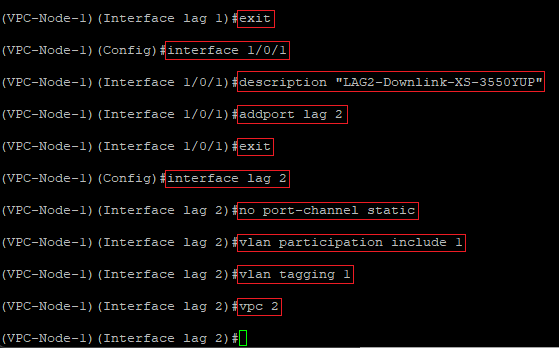
- Use the command interface <port number> to switch to the port configuration of the port, the downlink switch should be connected to.
- In this example the command is as follows:
- You can optionally enter a comment for the interface with the command description <comment>. Using quotation marks ensures, that comments with spaces can be used.
- In this example the command is as follows:
- description "LAG2-Downlink-XS-3550YUP"
- Add the port to a new Link Aggregation Group with the command addport <LAG ID>.
- In this example the command is as follows:
- Enter the command exit to return to the configuration menu.
- Switch to the Link Aggregation Group you just created via the command interface lag <LAG ID>.
- In this example the command is as follows:
- Enter the command no port-channel static so that LACP is used.
- Use the command vlan participation include <VLAN ID> to allow the VLANs, which should communicate with the downlink switch.
- In this example the command is as follows:
- vlan participation include 1
- Use the command vlan tagging <VLAN ID> to activate the VLAN tagging for the VLANs, which should communicate with the downlink switch.
- In this example the command is as follows:
- Enter the command vpc <domain> to create an additional VPC domain. The same VPC domain has to be used on the downlink of both VPC nodes.
- In this example the command is as follows:
1.7.2) Modify the following parameters:
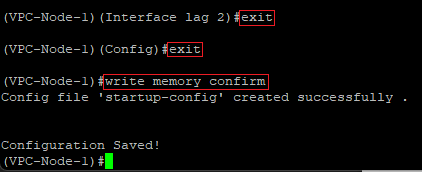
- Enter the command exit twice to return to the root level of the switch.
- Finally, enter the command write memory confirm to save the configuration as the start configuration. The parameter confirm ensures, that the write process does not have to be acknowledged.
1.7.3) This concludes the VPC configuration on the VPC-Node-1.
2) Configuring VPC on the VPC-Node-2:
2.1) Changing the stacking ports to the "Ethernet" mode:
2.1.1) Connect to the first switch (VPC-Node-2) via the serial interface and enter the command enable to gain extended rights.

2.1.2) Enter the command show stack-port to check, which ports are configured in "Stack" mode. In this example the ports 1/0/29 and 1/0/30 are configured in this way.
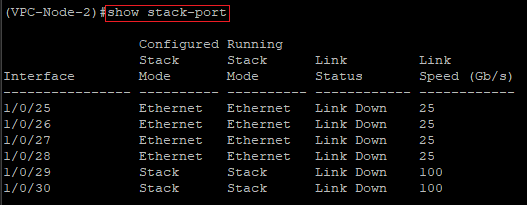
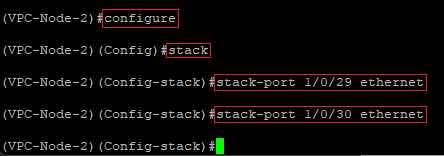
2.1.3) Modify the following parameters:
- Enter the command configure to open the configuration menu.
- Enter the command stack to open the stack configuration.
- Afterwards, change the port mode for both ports from Stack to Ethernet with the command stack-port <port number> ethernet.
- In this example the commands are as follows:
- stack-port 1/0/29 ethernet
- stack-port 1/0/30 ethernet
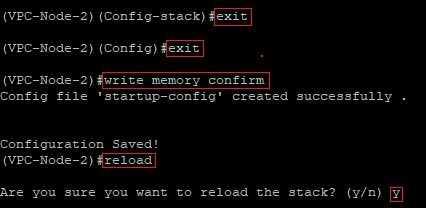
2.1.4) Modify the following parameters:
- Enter the command exit twice to return to the root level of the switch.
- Enter the command write memory confirm to save the configuration as the start configuration. The parameter confirm ensures, that the write process does not have to be acknowledged.
- Afterwards, perform a a restart of the switch with the command reload and acknowledge the query with the <y> key.
The restart of the switch is mandatory to change the port mode from Stack to Ethernet. |
2.2) Check the port change and activate VPC:
2.2.1) Modify the following parameters:
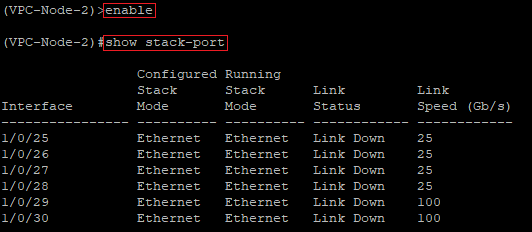
- Reconnect to the switch via the CLI after the restart and enter the command enable to gain extended rights.
- Check with the command show stack-port, if the port mode has been changed to Ethernet.
2.2.2) Modify the following parameters:
- Enter the command configure to open the configuration menu.
- Activate the VPC functionality with the command feature vpc.

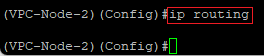
2.2.3) Activate the routing functionality with the command ip routing.
2.3) Configure the Layer 3 interface for the VPC keepalive:
For the VPC keepalive (split-brain detection), both switches require a dedicated layer 3 interface. Either an outband interface (service port / OOB) or an in-band interface (VLAN interface) can be used for this task. On switches with a service port, LANCOM Systems recommends to use this for the VPC keepalive. Only the XS-6128QF does not have a service port, so a VLAN interface must be configured on it for keepalive. |
2.3.1) Configure the Layer 3 interface for the VPC keepalive on the service port (XS-4530YUP, XS-4554YUP, YS-7154CF, CS-8132F):
2.3.1.1) Modify the following parameters:
- Enter the command exit to return to the root level of the switch.
- Deactivate DHCP on the service port with the command serviceport protocol none and acknowledge the query with the <y> key.
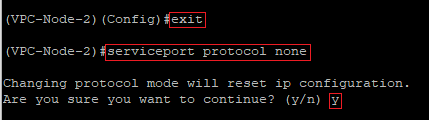
2.3.1.2) Modify the following parameters:
- Afterwards, assign an IP address from an unused network as well as a subnetmask to the service port with the command serviceport ip <IP address> <subnetmask>.
- In this example, the command is as follows:
- serviceport ip 10.10.10.2 255.255.255.0

If the VPC nodes also should be able to communicate with the Internet, a gateway must be specified on the service port as well. Use the command serviceport ip <IP address> <subnetmask> <default gateway> to do this. In this example, the command is as follows: serviceport ip 10.10.10.2 255.255.255.0 10.10.10.100 
|
2.3.2) Configure the Layer 3 interface for the VPC keepalive on a VLAN interface (XS-6128QF only):
2.3.2.1) Modify the following parameters:
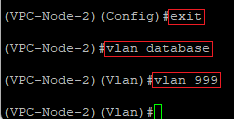
- Enter the command exit to return to the root level of the switch.
- Enter the command vlan database to open the VLAN configuration.
- Create a new VLAN with the command vlan <VLAN ID>. The VLAN must still be unused.
- In this example the command is as follows:
2.3.2.2) Modify the following parameters:
- Activate the routing functionality for the VLAN created in step 2.3.2.1 with the command vlan routing <VLAN ID>.
- In this example the command is as follows:

2.3.2.3) Modify the following parameters:
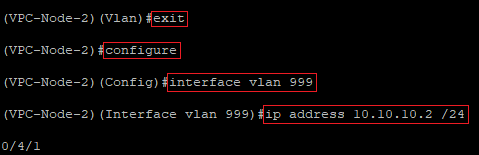
- Enter the command exit to return to the root level of the switch.
- Afterwards, enter the command configure to open the configuration menu.
- Use the command interface vlan <VLAN ID> to switch to the VLAN created in step 2.3.2.1.
- In this example the command is as follows:
- Enter an IP address from an unused network as well as a subnetmask for the VLAN interface with the command ip address <IP address /subnetmask in CIDR notation>.
- In this example the command is as follows::
- ip address 10.10.10.2 /24
2.4) Create the VPC domain and configure the VPC keepalive:
2.4.1) Modify the following parameters:
- Enter the command configure on the root level of the switch to open the configuration menu.
- Create a VPC domain with the command vpc domain 1.
- Configure the keepalive between the two VPC nodes with the command peer-keepalive destination <IP address of the Layer 3 interface on the VPC-Node-1> source <IP address of the Layer 3 interface on the VPC-Node-2>.
- In this example the command is as follows:
- peer-keepalive destination 10.10.10.1 source 10.10.10.2

2.4.2) Modify the following parameters:
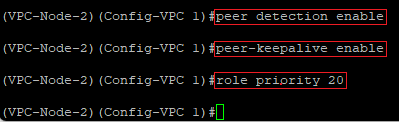
- Use the commands peer detection enable and peer-keepalive enable to activate the keepalive.
- Enter a priority for the VPC keepalive with the command role priority <value>. The priority decides which node becomes the Primary and which one the Secondary. The lower the value, the higher the priority.
- In this example the command is as follows:
2.5) Modify the System MAC:
In order for both VPC nodes to represent themselves to downlink switches without VPC support as one device, a virtual MAC address has to be entered on both VPC nodes.
Modify the following parameters:
- Enter the command system-mac <MAC address> to set a virtual MAC address for the VPC. This must be the same on both VPC nodes.
- In this example the command is as follows:
- system-mac 7A:E6:B0:6D:DD:EE
To prevent conflicts with other systems, it is recommended to use a Locally Administered MAC Address (LAA). If a MAC address generator is used, the U/L Flag = 1 (LAA) should be set. |
If additional VPC nodes are operated in the same scenario, it is mandatory to use a different System MAC on these. Otherwise, this would lead to communication problems! |

2.6) Create the VPC-Peer-Link:
The Management VLAN must not pass through the VPC-Peer-Link. In the default settings the VLAN 1 is used as the Management VLAN. If this VLAN should pass through the VPC-Peer-Link, the Management VLAN must be replaced by a dummy VLAN and the routing functionality for VLAN 1 has be activated. |
2.6.1) Modify the following parameters:
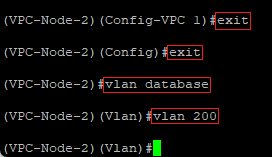
- Enter the command exit twice to return to the root level of the switch.
- Switch to the VLAN configuration with the command vlan database.
- Create a new VLAN with the command vlan <VLAN ID>. The VLAN must still be unused and it serves as a dummy VLAN.
- In this example the command is as follows:
2.6.2) Modify the following parameters:
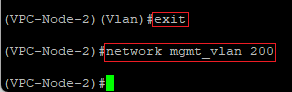
- Enter the command exit to return to the root level of the switch.
- Replace the previous management VLAN with the dummy VLAN created in step 2.6.1 with the command network mgmt_vlan <VLAN ID>.
- In this example the command is as follows:
2.6.3) Modify the following parameters:
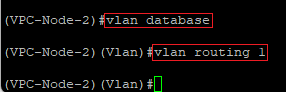
- Switch to the VLAN configuration again with the command vlan database.
- Activate the routing functionality for the VLAN 1 with the command vlan routing 1.
2.6.4) Modify the following parameters:
- Enter the command exit to return to the configuration menu.
- Enter the command configure on the root level of the switch to open the configuration menu.
- Switch to the VLAN 1 with the command interface vlan 1.
- Enter an IP address from an unused network and a subnetmask with the command ip address <IP address /subnetmask in CIDR notation>.
- In this example the command is as follows:
- ip address 192.168.2.2 /24
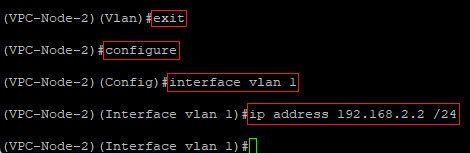
2.6.5) Modify the following parameters:
- Enter the command exit to return to the configuration menu.
- Create a default route for the network created in step 2.6.4 with the command ip route default <IP address of the default gateway>.
- In this example the command is as follows:
- ip route default 192.168.2.100

2.6.6) Modify the following parameters:
- Enter the command ip name server <IP address of a DNS server> to specify a DNS server.
- In this example the command is as follows:
- ip name server 192.168.2.100

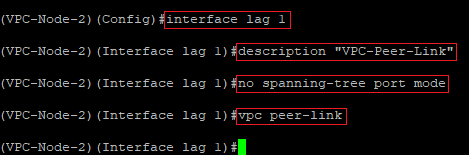
2.6.7) Modify the following parameters:
- Create a Link Aggregation Group with the command interface lag <LAG ID>.
- In this example the command is as follows:
- You can optionally add a comment for the created Link Aggregation Group with the command description <comment>. Using quotation marks ensures, that comments with spaces can be used.
- In this example the command is as follows:
- description "VPC-Peer-Link"
- Use the command no spanning-tree port mode to deactivate Spanning Tree for the created Link Aggregation Group.
- Use the command vpc peer-link to activate the VPC-Peer-Link for the created Link Aggregation Group.
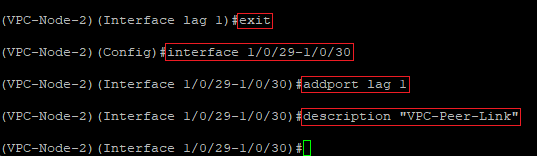
2.6.8) Modify the following parameters:
- Use the command interface <Interface 1>-<Interface 2> to edit the ports modified in step 2.1.
- In this example the command is as follows:
- Add the ports to the Link Aggregation group created in step 2.6.7 with the command addport lag 1.
- You can optionally add a comment for the interfaces with the command description <comment>. Using quotation marks ensures, that comments with spaces can be used.
- In this example the command is as follows:
- description "VPC-Peer-Link"
2.6.9) Modify the following parameters:
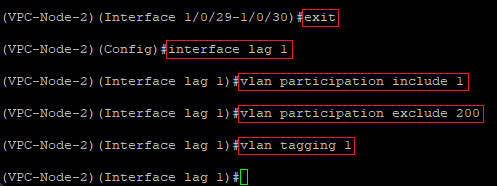
- Enter the command exit to return to the configuration menu.
- Enter the command interface lag 1 to edit the Link Aggregation Group created in step 2.6.7.
- Use the command vlan participation include <VLAN ID> to allow the VLANs, which should communicate via the VPC Link.
- In this example the command is as follows:
- vlan participation include 1
- Use the command vlan participation exclude <VLAN ID> to ban the Management VLAN, as it is not allowed to communicate via the VPC Peer Link.
- In this example the command is as follows:
- vlan participation exclude 200
- Use the command vlan tagging <VLAN ID> to activate the VLAN tagging for the VLAN, which should communicate via the VPC Peer Link.
- In this example the command is as follows:
If the Layer 3 interface for the VPC keepalive was configured in step 2.3.2 on an XS-6128QF, additionally the VLAN specified in this step has to be allowed (vlan participate include 999). Also, the VLAN tagging for the VLAN ID specified in step 1.3.2 has to be activated (vlan tagging 999). 
|
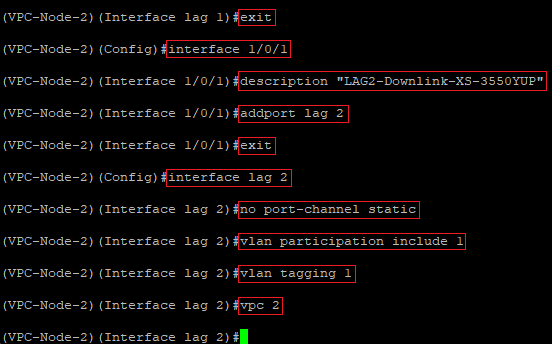
2.7) Prepare the Downlink port to the downlink switch:
2.7.1) Modify the following parameters:
- Enter the command exit to return to the configuration menu.
- Use the command interface <port number> to switch to the port configuration of the port, the downlink switch should be connected to.
- In this example the command is as follows:
- You can optionally enter a comment for the interface with the command description <comment>. Using quotation marks ensures, that comments with spaces can be used.
- In this example the command is as follows:
- description "LAG2-Downlink-XS-3550YUP"
- Add the port to a new Link Aggregation Group with the command addport <LAG ID>.
- In this example the command is as follows:
- Enter the command exit to return to the configuration menu.
- Switch to the Link Aggregation Group you just created via the command interface lag <LAG ID>.
- In this example the command is as follows:
- Enter the command no port-channel static so that LACP is used.
- Use the command vlan participation include <VLAN ID> to allow the VLANs, which should communicate with the downlink switch.
- In this example the command is as follows:
- vlan participation include 1
- Use the command vlan tagging <VLAN ID> to activate the VLAN tagging for the VLANs, which should communicate with the downlink switch.
- In this example the command is as follows:
- Enter the command vpc <domain> to create an additional VPC domain. The same VPC domain has to be used on the downlink of both VPC nodes.
- In this example the command is as follows:
2.7.2) Modify the following parameters:
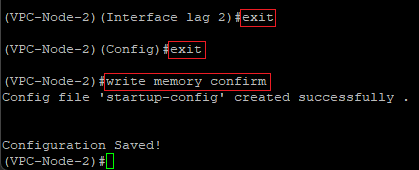
- Enter the command exit twice to return to the root level of the switch.
- Finally, enter the command write memory confirm to save the configuration as the start configuration. The parameter confirm ensures, that the write process does not have to be acknowledged.
2.7.3) This concludes the VPC configuration on the VPC-Node-2.
3) Further steps:
Configure LACP on the downlink switch as described in one of the following Knowledge Base articles:
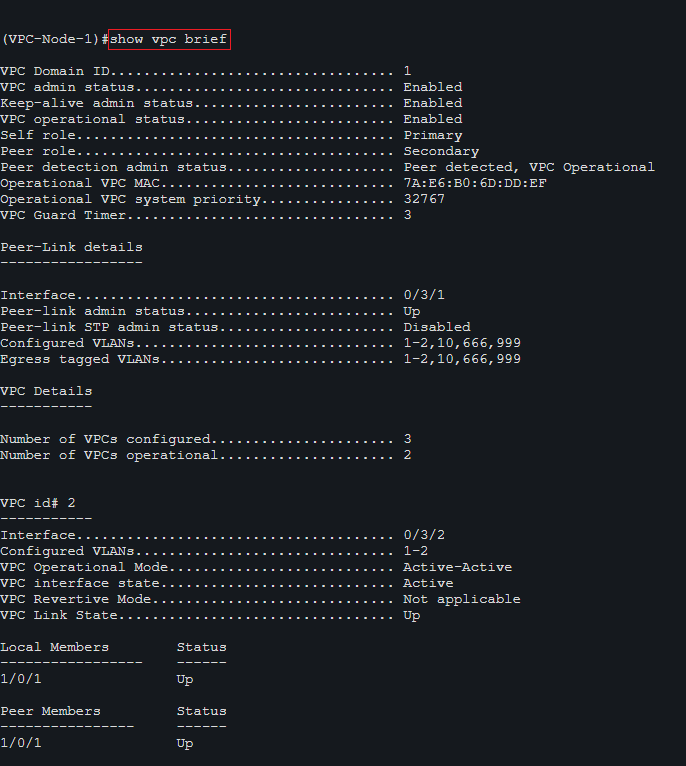
4) Reading out the VPC status on the VPC nodes:
You can read out the VPC status on the VPC nodes via the CLI command show vpc brief.


  Thank you for your feedback! You can also send us constructive suggestions for improving our knowledge base or ideas for new articles by email to knowledgebase@lancom.de. |
|
