
Description:
Some scenarios benefit from the redundancy of connecting the LANCOM R&S®Unified Firewall to two switches on two Ethernet interfaces. Only one of the connections is active at a time. If the current connection fails, the system changes to the other connection.
This article describes how a network can be connected redundantly to a LANCOM R&S®Unified Firewall via two Ethernet interfaces.
Requirements:
- LCOS FX as of version 10.7 (download latest version)
- Web browser for configuring the Unified Firewall
The following browsers are supported:- Google Chrome
- Chromium
- Mozilla Firefox
Scenario:
- The Unified Firewall is to be set up with the network 192.168.10.0/24 and connected redundantly via the ports eth2 and eth3.
- The two switches are connected to each other.
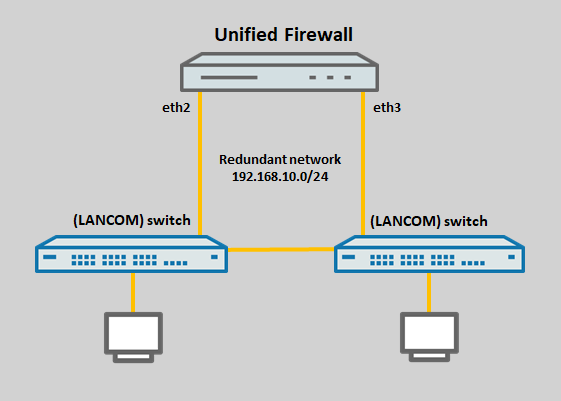
Procedure:
The redundant connection can be implemented either by a bridge based on spanning tree (section 1) or by a bond interface (section 2). In both cases, some preparations are required in advance.
Preparations:
Connect to the Unified Firewall via the webinterface. Go to the menu Network → Connections → Network Connections and use the “trashcan” icon to delete two unused networks so that they can be used for the bridge (section 1) or the bond interface (section 2).
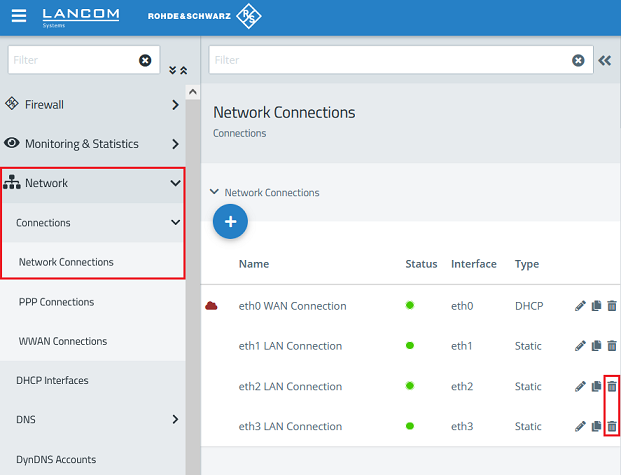
1) Using a bridge to create a redundantly connected network:
This method does not work in combination with VLAN, since this requires MSTP. However, MSTP is not supported in LCOS FX. If VLAN is a requirement, you have to use the bond interface method described in section 2.
1.1) Navigate to the menu Network → Interfaces → Bridge Interfaces and click on the “+” icon to create a bridge interface.
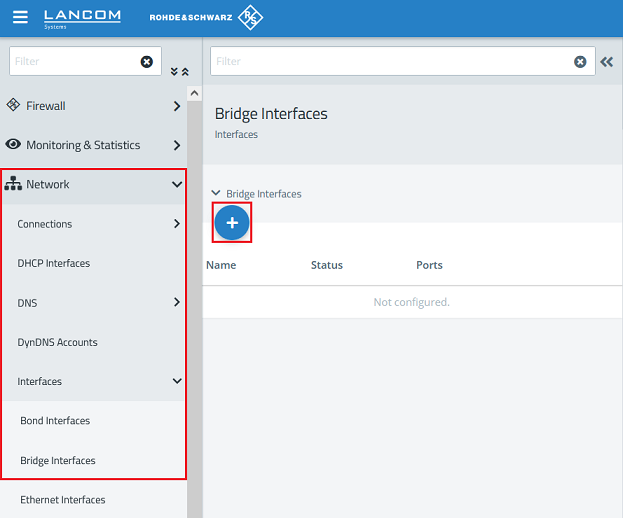
1.2) Enter two free ports (see Preparations), activate the Spanning Tree Protocol and click Create.
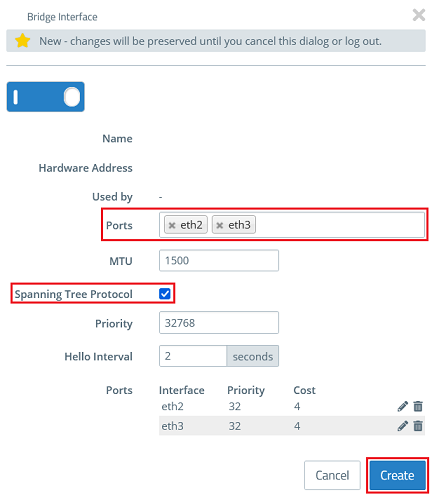
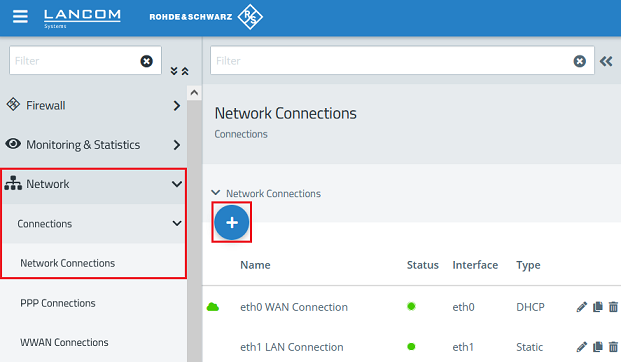
1.3) Change to the menu Network → Connections → Network Connections and click on the “+” icon to assign an IP address to the bridge created in step 1.2.
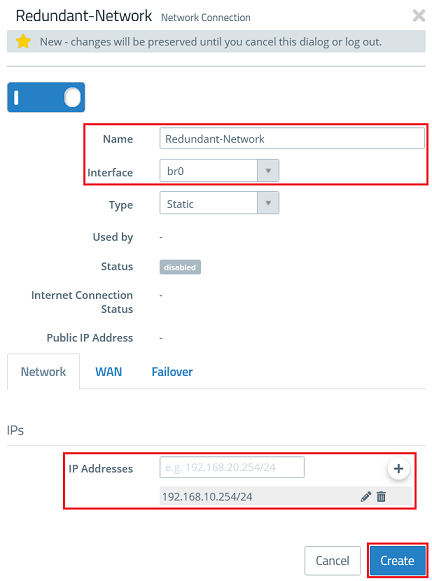
1.4) Modify the following parameters and then click Create:
- Name: Enter a descriptive name (in this example Redundant-Network).
- Interface: From the drop-down menu, select the bridge created in step 1.2 (in this case br0).
- IP Addresses: Enter an IP address in CIDR notation (Classless Inter Domain Routing) that the network should have (in this example 192.168.10.254/24).
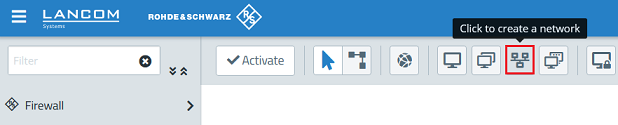
1.5) Click the icon Create a network to create a network object.
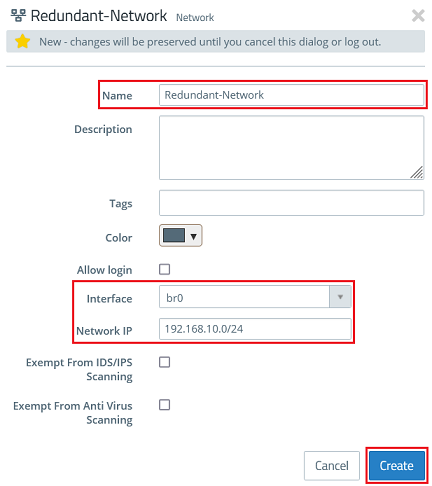
1.6) Modify the following parameters and then click Create:
- Name: Enter a descriptive name (in this example Redundant-Network).
- Interface: From the drop-down menu, select the bridge created in step 1.2 (in this case br0).
- Network IP: Enter the network address of the IP address created in step 1.4 in CIDR notation (in this example 192.168.10.0/24).
For this network, you can then use the packet filter to create firewall rules that allow access to other networks and to the Internet. This is described in the following Knowledge Base article:
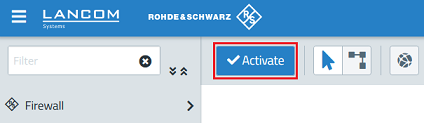
1.7) Finally, implement the changes by clicking Activate.
The connected switches then have to be configured for spanning tree. The procedure for the different LANCOM switch models is described in the following Knowledge Base articles:
Configuring RSTP on a GS-23xx series switch
Configuring RSTP on a GS-3xxx series switch (LCOS SX 4.00)
Configuring RSTP on a switch with LCOS SX 5.xx
If you operate switches from a different manufacturer, please consult the documentation or contact the manufacturer.
2) Using a bond interface to create a redundantly connected network:
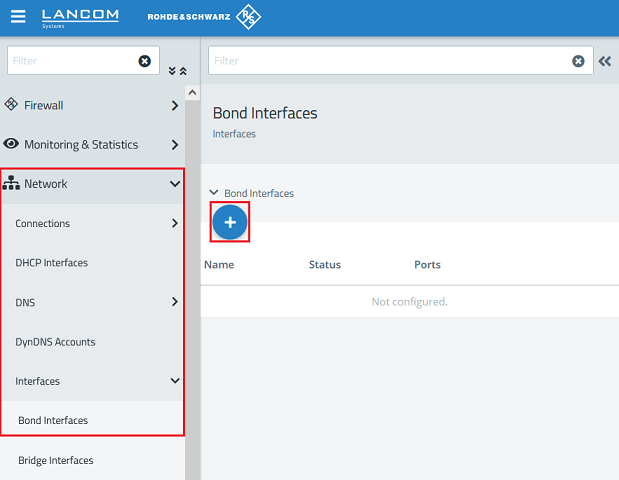
2.1) Navigate to the menu Network → Interfaces → Bond Interfaces and click on the “+” icon to create a new interface.
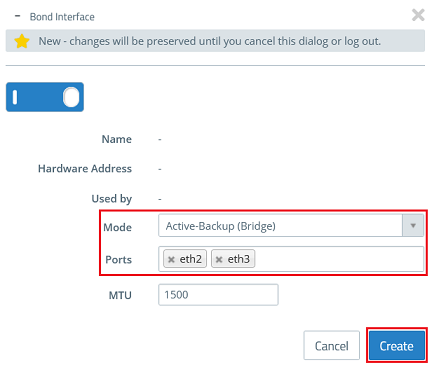
2.2) Modify the following parameters and then click Create:
- Mode: From the drop-down menu, select the option Active-Backup (Bridge). Data is transferred over the first interface in the list. If this fails, the system changes to the next interface in the list. If the original interface becomes available again, the connection remains on the interface that took over the communication.
- Ports: Enter two free ports (see Preparations).
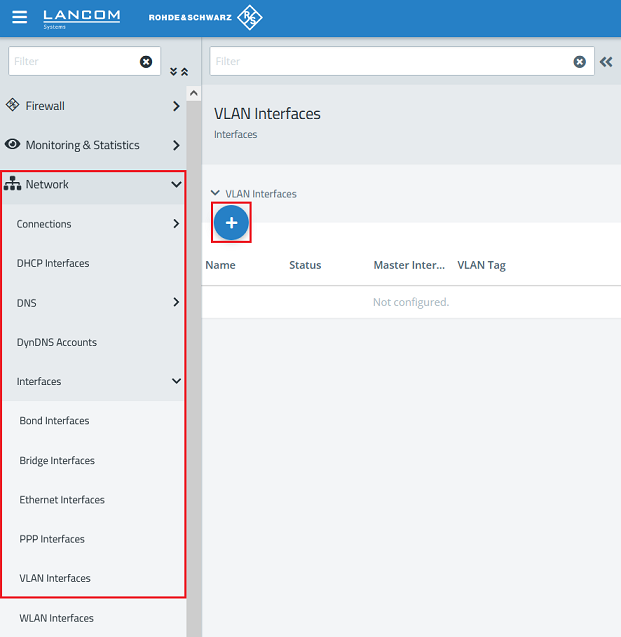
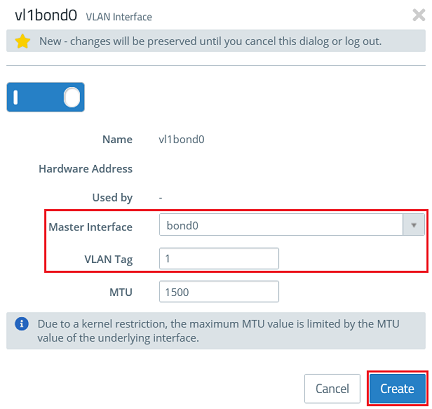
2.3) Navigate to the menu Network → Interfaces → VLAN Interfaces and click on the “+” icon to assign a VLAN to the Bond.
2.4) For the Master Interface, select the bond interface created in step 2.2, enter the necessary VLAN tag, and click Create.
Repeat this step for additional VLANs, if applicable.
2.5) Change to the menu Network → Connections → Network Connections and click on the “+” icon to assign an IP address to the bond interface created in step 2.2.
2.6) Modify the following parameters and then click Create:
- Name: Enter a descriptive name (in this example Redundant-Network).
- Interface: From the drop-down menu, select the bond interface created in step 2.2 (in this case bond0).
- IP Addresses: Enter an IP address in CIDR notation that the network should have (in this example 192.168.10.254/24).

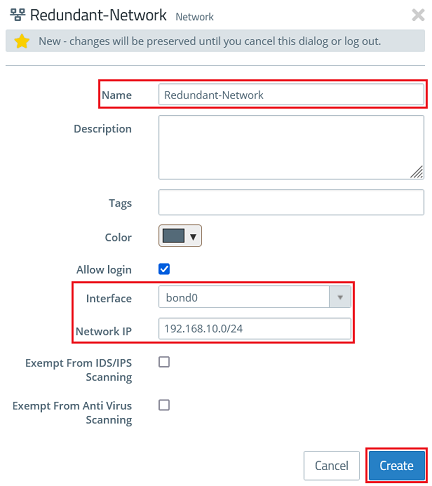
2.7) Click the icon Create a network to create a network object.
2.8) Modify the following parameters and then click Create:
- Name: Enter a descriptive name (in this example Redundant-Network).
- Interface: From the drop-down menu, select the bond interface created in step 2.2 (in this case bond0).
- Network IP: Enter the network address of the IP address created in step 2.6 in CIDR notation (in this example 192.168.10.0/24).
For this network, you can then use the packet filter to create firewall rules that allow access to other networks and to the Internet. This is described in the following Knowledge Base article:
2.9) Finally, implement the changes by clicking Activate.
